How organisations can detect, control, and automatically block high-risk AI agent behaviour using Microsoft Entra and Security Copilot — without static configurations.
Every AI agent you deploy is also an identity — one that authenticates, holds delegated permissions, and accesses enterprise resources continuously. Copilot agents, custom orchestrators, and autonomous workflows are already operating in your tenant today, reading documents, querying mailboxes, and traversing Microsoft Graph. Most organisations have invested heavily in securing human identities. Very few have extended that same rigour to the agents running alongside them.
This is the new identity surface. AI agents are non-human identities with real enterprise access. Unlike users, they scale instantly, operate continuously, and can be prompted — intentionally or through adversarial manipulation — to do things no human would attempt in a corporate environment. A single misconfigured agent, a bad prompt, or an overly permissive role can quietly turn a productivity tool into a data leakage vector.
This post walks through how Microsoft Entra Suite, combined with Security Copilot, gives you the controls to govern AI agents the right way: detect anomalous behaviour in real time, block high-risk agents automatically, and — critically — scope and contain an incident when one agent does something it shouldn’t. It maps directly to the Security Journey: Identify → Protect → Detect → Respond → Optimize.
The New Identity Surface: AI Agents
When a user interacts with a Copilot agent or a custom AI workflow, the agent doesn’t just answer questions — it acts. It calls Microsoft Graph. It reads from SharePoint. It queries Exchange. It does all of this using delegated or application permissions that were granted at registration time.
This behaviour makes AI agents functionally equivalent to service principals or managed identities in terms of access scope. The key difference is that their behaviour is less predictable. A human user follows a routine. An AI agent can be prompted — intentionally or through adversarial manipulation — to behave in ways that deviate significantly from its intended role.
This is exactly why Microsoft Entra now treats agent identities as first-class objects in the identity plane, alongside users, devices, and workloads.
“You wouldn’t allow a contractor to access your most sensitive systems without identity governance. The same logic applies to your AI agents.”
The Security Journey — Applied to AI Agents
The Security Journey provides a structured framework for maturing an organisation’s security posture across five phases. This demo maps each phase to a concrete capability in Microsoft Entra and Security Copilot:
| Phase | Capability | Tooling |
|---|---|---|
| Identify | AI agent identities are registered and inventoried in Entra ID | Microsoft Entra ID – Agents (Preview) |
| Protect | Conditional Access policies enforce risk-based access control | Entra Conditional Access |
| Detect | Anomalous agent behaviour is flagged by Identity Protection | Entra Identity Protection · Security Copilot |
| Respond | Automatic access block and session termination via CAE | Conditional Access · Defender XDR |
| Optimize | Continuous policy analysis and gap identification | Security Copilot – CA Optimisation Agent |
The Demo Scenario: Six Acts
The following walkthrough presents the full demo as a sequence of six narrative acts — from normal agent operation through risk detection, policy enforcement, and continuous optimisation.
Normal Operations: Agent Interacts with Enterprise Resources
The scenario begins with a user interacting with a Copilot agent or a custom-built AI agent. Behind the scenes, the agent authenticates to Microsoft Entra and begins accessing enterprise resources using its granted permissions:
- SharePoint Online — reading documents and site content
- Exchange Online — accessing calendar and mailbox data
- Microsoft Graph API — querying organisational data
At this stage, everything appears normal. The agent is operating within its expected permission scope. This establishes the baseline — the agent is a non-human identity with real, meaningful access to enterprise systems.
Simulating Suspicious Behaviour: A Data Leakage Scenario
To demonstrate the detection capability, the demo simulates a change in agent behaviour. The agent begins to exhibit patterns that are inconsistent with its normal operational profile:
- Excessive data access — retrieving large volumes of documents in a short time window
- Sensitive content access — accessing files and folders outside of its intended scope
This models a realistic data leakage scenario — whether caused by a misconfigured agent, a compromised orchestration layer, or a prompt injection attack. The agent’s behaviour has become high-risk, even if its credentials remain valid.
Why this matters
Traditional perimeter controls cannot distinguish between a legitimate agent request and an anomalous one. Identity-aware, risk-based controls are the only way to enforce meaningful boundaries on non-human behaviour.
Detection: Identity Protection and Security Copilot
Microsoft Entra Identity Protection analyses the agent’s behaviour against its established baseline and flags the deviation as anomalous. The risk signal is surfaced in the Entra admin portal.
Security Copilot enriches the raw signal with contextual intelligence — explaining what the agent was doing, why it is considered high-risk, and what the likely impact could be.
To invoke this directly in Security Copilot, use the following prompt:
Security Copilot prompt
“Show high-risk agent identities and explain associated risks”
Security Copilot returns a risk summary — including the agent’s name, the signals that triggered the classification, the assessed severity, and recommended actions. This gives security teams the context they need to make an informed decision — or to let the policy act automatically.
The Core Control: Block High-Risk Agent Identities
This is the centrepiece of the demo. A Conditional Access policy is configured to automatically block any AI agent that Entra classifies as high-risk — no manual intervention required.
Policy Configuration — Conditional Access policy
| Setting | Value |
|---|---|
| Policy name | Block High-Risk Agent Identities |
| Assign to | Agents (Preview) → All agent identities (Preview) |
| Target resources | All resources (formerly all cloud apps) |
| Condition | Agent risk (Preview) → High |
| Access control | Block access |
✓ Outcome: Any high-risk agent is automatically denied access
The risk classification is performed automatically by Microsoft — you do not need to maintain a list of high-risk agents yourself. The platform evaluates each agent using signals from Entra ID, Security Copilot, and Microsoft’s broader threat intelligence, including:
- Excessive permissions relative to actual usage
- Anomalous access volume or pattern
- Suspicious access to sensitive content
- Indicators of prompt injection or misuse of AI capabilities
Risk levels are assigned as Low, Medium, or High. The policy activates only when the threshold reaches High — precise, proportionate, and automatic.
Continuous Improvement: The Conditional Access Optimisation Agent
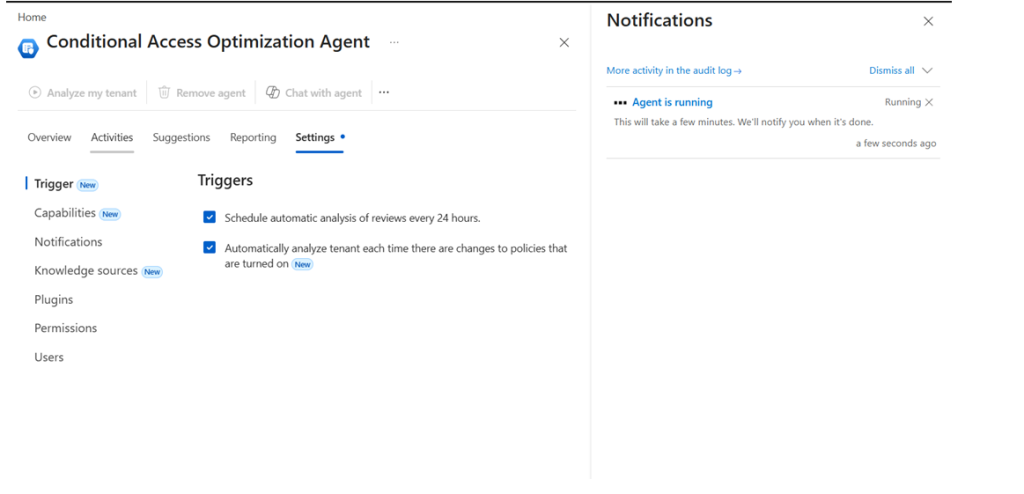
Security Copilot includes a dedicated Conditional Access Optimisation Agent that operates as an ongoing posture advisor. After the Conditional Access policy is in place, the optimisation agent:
- Analyses all existing Conditional Access policies for gaps and overlaps
- Identifies agent identities or access paths that are not yet covered by a policy
- Recommends improvements with plain-language explanations and suggested configurations
This shifts the posture from reactive to continuously adaptive — the policy set evolves as the threat landscape and the organisation’s agent inventory change over time.
The screenshot below shows the agent’s Settings → Trigger configuration in the Microsoft Entra admin center. Two triggers are active: the agent runs an automatic analysis every 24 hours, and it also triggers immediately whenever a Conditional Access policy is turned on or modified. The notification panel on the right confirms that the agent is actively scanning the tenant in real time — a few seconds after being launched.
Automated Response: Block, Terminate, Log
When a high-risk agent triggers the Conditional Access policy, three things happen immediately:
- Access block — the agent’s request is denied at the policy evaluation layer
- Session termination — Continuous Access Evaluation (CAE) revokes any active tokens, ending existing sessions in near real-time
- Incident creation — the event is recorded in Entra ID audit logs and surfaced as an incident in Defender XDR for investigation
Security teams can review the incident in Defender XDR with full timeline context, cross-reference related alerts, and initiate a formal investigation — all without leaving the Microsoft security stack.
When an Agent Fails: Scope Before You Act
Automated blocking via Conditional Access blocking is the immediate response. But the moment a high-risk agent is flagged, a second question becomes critical: is this isolated, or systemic? The answer determines how aggressively you need to respond — and how quickly you can restore normal operations.
If one agent makes an unexpected move, treat it as a signal, not an automatic system-wide failure. The right starting point is to validate scope and trust boundaries.
| Signal type | Characteristics | Response posture |
|---|---|---|
| Isolated | Misconfiguration, bad prompt, overly permissive role — specific to one agent | Fix the root cause (permissions, logic, prompt, or workflow), then restore |
| Systemic | Shared logic, common identity, reused playbook pattern, or shared policy | Pause related high-impact automations; increase scrutiny across all agents sharing the same model |
Higher risk: shared foundations
If agents share the same permissions model, data sources, or automation framework, there is a higher probability they could behave similarly. One bad actor in a shared-identity pool is a warning about the whole pool — not just the individual instance.
Operating in “Trust but Verify” Mode
While the investigation is underway, the goal is to maintain continuity for low-risk operations without exposing the environment to further risk. In practice, this means a tiered response:
- Keep running: Low-risk and read-only agents that don’t share the affected identity, permissions model, or automation framework.
- Restrict or monitor: Agents with write or response actions — especially those that share logic, data sources, or roles with the flagged agent. Review logs for similar behaviour patterns.
- Pause: High-impact automations that use a common identity or playbook pattern until you can confirm the root cause is not reusable elsewhere.
Restoring confidence
Once you confirm the incident is isolated and the root cause is addressed — whether that’s a permissions adjustment, a logic fix, a prompt correction, or a workflow change — you can safely restore the agent’s access and resume normal operations. The Conditional Access policy remains in place as the ongoing safety net, ready to act again if the risk resurfaces.
This triage model turns every agent incident into a structured learning loop: detect → scope → contain → fix → restore → optimise. It also feeds directly back into the Conditional Access Optimisation Agent, which can incorporate the findings to strengthen the policy set for future scenarios.
Data Leakage Prevention Coverage
The scenario above is fundamentally a data leakage prevention story. Conditional Access, combined with Entra Identity Protection and Security Copilot, forms the core identity-based protection layer for AI agent data access. For organisations with more advanced requirements, this can be extended with:
| Integration | Additional capability |
|---|---|
| Microsoft Purview | Classifies sensitive data accessed by agents; integrates sensitivity labels into Conditional Access logic |
| Defender for Cloud Apps | Provides session-level control and file-level policy enforcement for agent-initiated cloud app activity |
Using the Conditional Access Agent
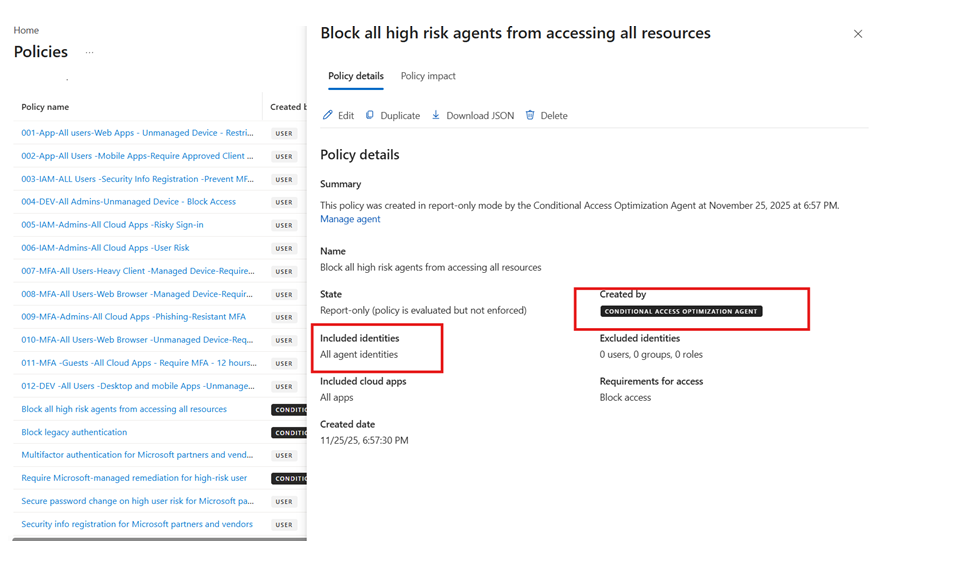
If your tenant has Security Copilot enabled, you can also access the Conditional Access agent directly from the Agent tab in the Microsoft Entra admin center. The agent can analyse your existing policy set, identify gaps, and generate a new policy recommendation — including the Conditional Access configuration — with a single prompt.
The Conditional Access agent can now be used to create and apply a new Conditional Access policy
Creating the Conditional Access Policy: Step-by-Step
The following steps reproduce the exact configuration demonstrated in the scenario above.
Before you start
You will need one of the following roles: Conditional Access Administrator, Security Administrator, or Global Administrator. The Agents (Preview) features must be enabled in your Entra tenant.
- Sign in to Microsoft Entra admin centerNavigate to entra.microsoft.com and sign in with an account that holds Conditional Access Administrator rights or higher.
- Open the Conditional Access bladeBrowse to
Entra ID → Protection → Conditional Access → Policies, then clickNew policy. - Name the policyEnter the name:
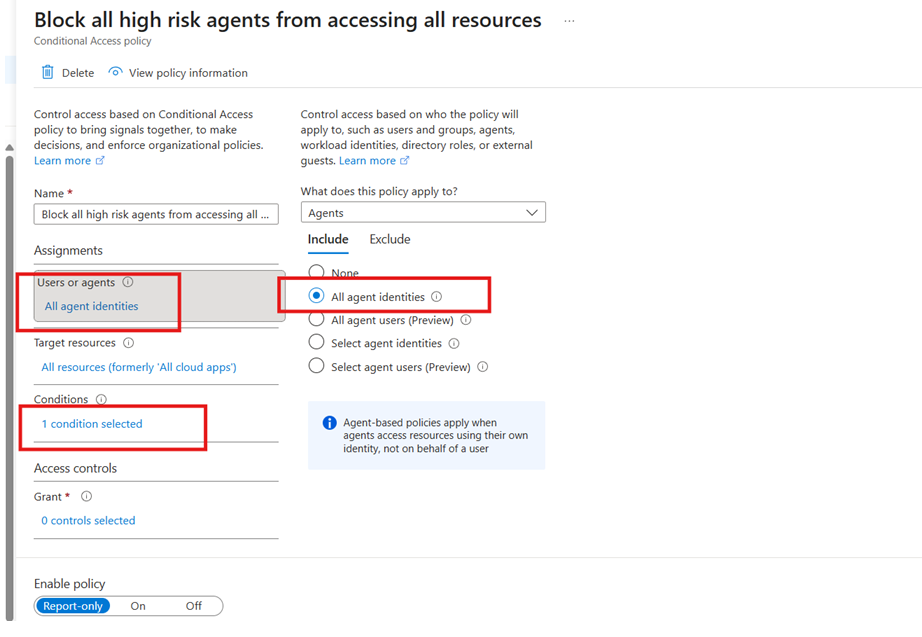
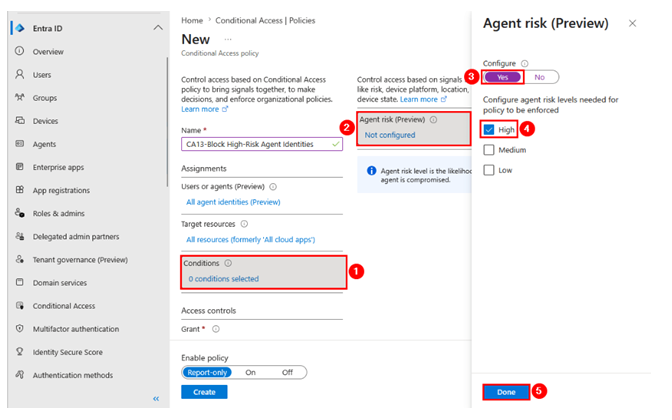
Block High-Risk Agent Identities - Configure Assignments — AgentsClick Users or agents (Preview) → Select Agents (Preview) → Under Include, select All agent identities (Preview).
- Configure Target ResourcesClick Target resources → Select Resources (formerly cloud apps) → Under Include, select All resources (formerly ‘All cloud apps’).
- Configure the Agent Risk conditionClick Conditions → Click Agent risk (Preview) → Set Configure toYes→ SelectHigh→ ClickDone.
- Set the Access Control to BlockUnder Access controls → Grant, selectBlock access. Set the policy state toOn, then clickCreate.
Prerequisites and Licensing
Security Copilot
Allocate 2–3 Security Copilot Units (SCUs) to enable Security Copilot features, including the Conditional Access Optimisation Agent and the agent risk query prompt.

Administrator Roles Required
- Conditional Access Administrator
- Security Administrator
- Global Administrator
Note: SCU consumption varies by query complexity. 2–3 SCUs is a recommended starting allocation for this scenario; adjust based on your organisation’s Security Copilot usage patterns.
Key Takeaways
- AI agents are non-human identities with real enterprise access — they must be governed with the same rigour as user and service principal identities.
- Microsoft Entra now supports agent identities natively in Conditional Access, enabling risk-based policy enforcement without manual tracking.
- Risk classification is automatic — Microsoft evaluates agent behaviour using signals from Entra ID, Security Copilot, and broader threat intelligence.
- Policy This policy provides a single, dynamic control that blocks any high-risk agent across all resources — no static allowlists or denylists required.
- Continuous Access Evaluation (CAE) ensures that session revocation is near real-time — not on the next token refresh.
- Security Copilot’s Conditional Access Optimisation Agent closes the loop: detect gaps, recommend improvements, and keep the policy set current as the agent inventory evolves.
- This approach aligns with the Security Journey from Identify through Optimize — enabling secure AI adoption at enterprise scale.
Final Thoughts
The adoption of AI agents at enterprise scale is accelerating. The security controls that govern those agents must accelerate alongside them. Microsoft Entra’s agent identity framework — combined with dynamic Conditional Access and Security Copilot intelligence — provides exactly that: a real-time, adaptive, identity-native approach to securing AI in the enterprise.
The Conditional Access policy is a starting point, not an endpoint. As agent inventories grow and risk signals evolve, the Conditional Access Optimisation Agent ensures your posture grows with them. The goal is not to block AI — it is to make AI trustworthy.
For organisations on the Security Journey, this scenario demonstrates that the path to secure AI adoption is the same path you are already on: clear identity, precise controls, real-time detection, and continuous optimisation.