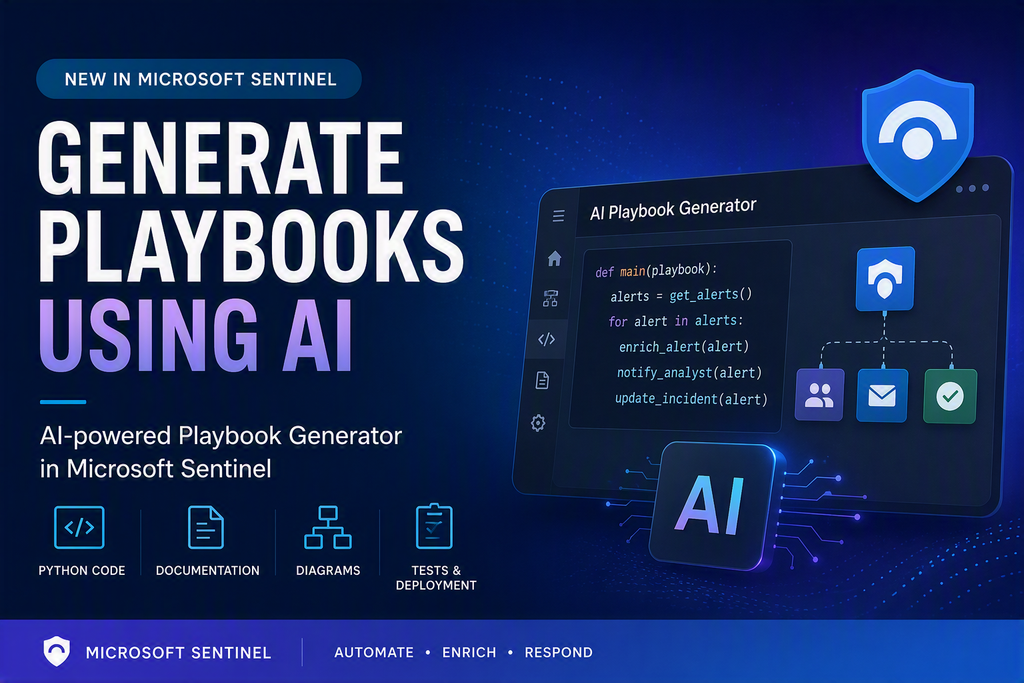
Microsoft Sentinel now includes an AI-powered Playbook Generator that enables security teams to create SOAR automation workflows using natural language. The solution leverages the Cline AI coding agent running inside an embedded Visual Studio Code environment within the Microsoft Defender portal, allowing analysts and engineers to design, generate, test, and deploy automation workflows without leaving the Sentinel experience.
Instead of manually developing playbooks, users can simply describe the desired automation logic in plain language. The AI engine then generates the required Python-based playbook, supporting documentation, and a visual workflow diagram. The generated playbooks can process alerts from Microsoft Sentinel, Microsoft Defender, and other XDR sources, while also integrating with Microsoft Graph and third-party platforms through configurable Integration Profiles.
A key advantage of this capability is that it does not require a separate Microsoft Security Copilot license or Security Compute Units (SCUs). The feature is available directly within the Microsoft Defender portal for Microsoft Sentinel customers.
Microsoft Sentinel now includes an AI-powered Playbook Generator that uses the Cline AI agent inside an embedded VS Code environment in the Defender portal. You describe the automation in natural language, and it generates the Python playbook, documentation, and workflow diagram automatically.
During my testing, the Playbook Generator significantly reduced the time required to create a proof-of-concept automation workflow. Instead of manually building Logic Apps or writing playbook logic from scratch, I was able to describe the desired outcome in natural language and let the AI generate the implementation artifacts.
The generated output included Python code, documentation, test files, and deployment-ready packages. While the quality was surprisingly good for common automation scenarios, I still recommend performing code review and validation before deploying generated playbooks into production environments.
Key Benefits
- AI-assisted creation of Python-based SOAR playbooks using natural language.
- Automatic generation of playbook code, documentation, and workflow diagrams.
- Built-in testing using real alert data before deployment.
- Native support for Microsoft Sentinel, Microsoft Defender, and XDR alerts.
- Integration with Microsoft Graph and third-party systems through Integration Profiles.
- Embedded Visual Studio Code experience directly within the Defender portal.
How It Works
- Configure the required Integration Profiles (for example, Microsoft Graph or third-party services).
- Open the Playbook Generator from the Microsoft Sentinel Automation experience.
- Describe the desired automation workflow using natural language.
- The AI first generates an execution plan and workflow diagram (Plan Mode).
- The solution then creates the corresponding Python automation code (Act Mode).
- Test the playbook using a real alert.
- Review, save, and activate the workflow for production use.
This capability significantly reduces the effort required to build and maintain SOAR automations, enabling security teams to accelerate incident response while adopting an Automation-as-Code approach within Microsoft Sentinel.
Environment requirements
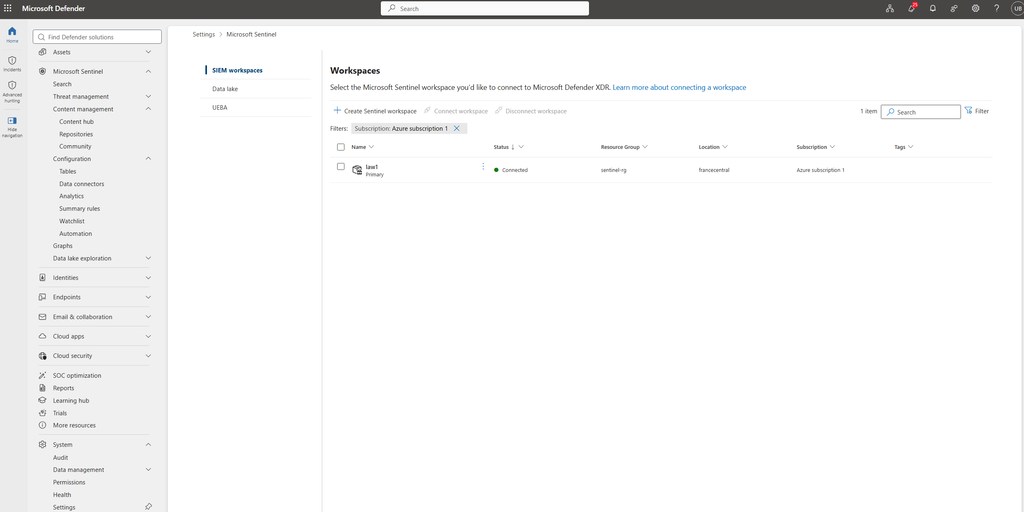
- Microsoft Sentinel workspace: You must have a Microsoft Sentinel workspace onboarded to the Microsoft Defender portal.
Required roles and permissions
You need the following permissions in Unified RBAC Defender XDR:
- To generate and deploy playbooks:
- Automation: Automation Playbooks (Read and Write)
- To automation rules:
- Microsoft Sentinel Contributor role on the relevant Workspaces or Resource Groups containing them in Defender.
Integration profiles
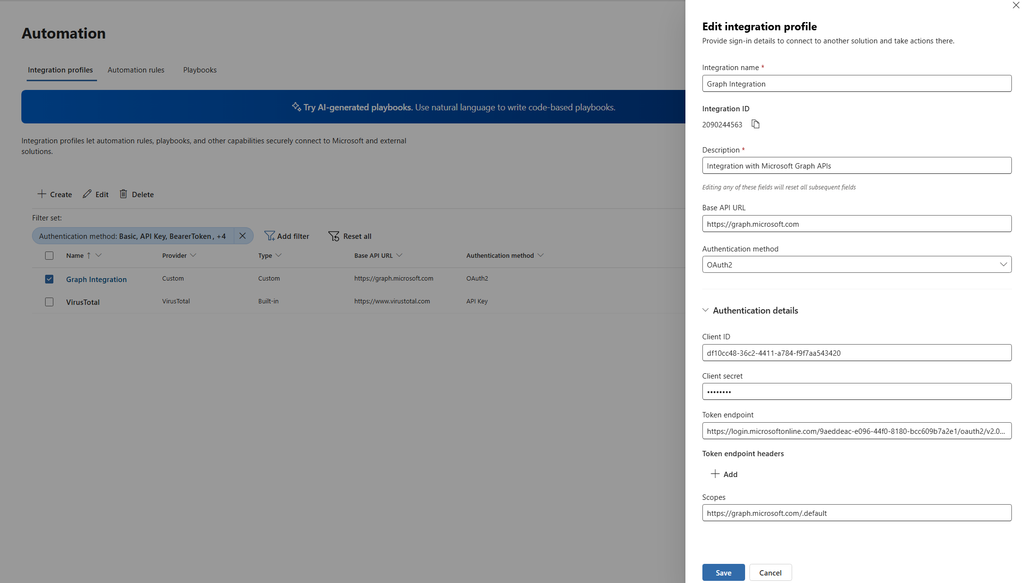
Integration profiles are secure configurations that allow generated playbooks to interact with external APIs. Each integration includes:
- Base URL
- Authentication method
- Required credentials
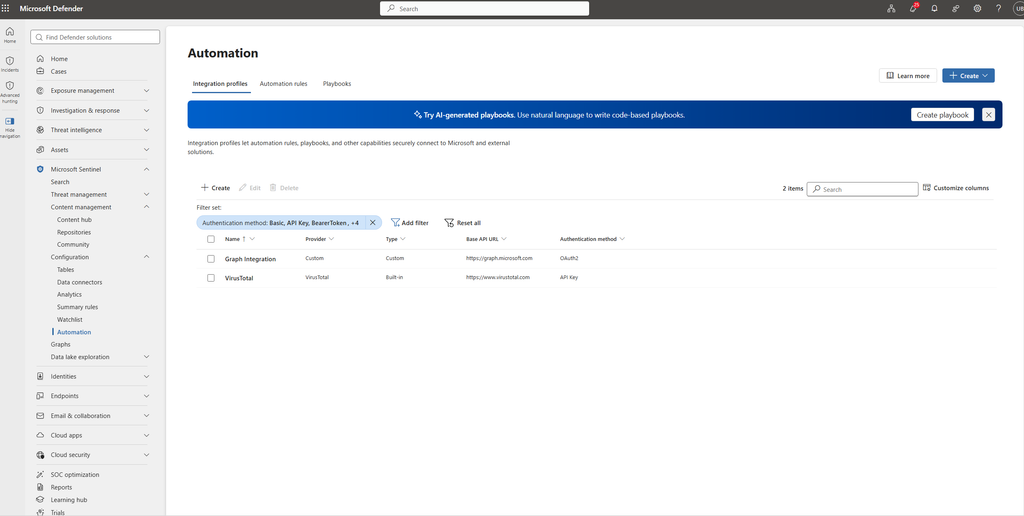
The playbook generator uses each configured integration profile to execute API calls for its corresponding service. If the integration is missing, it prompts you to create one before proceeding with playbook generation. Manage integration profiles centrally in the Defender portal under the Automation tab. Before creating a playbook, ensure you configure all required integrations.
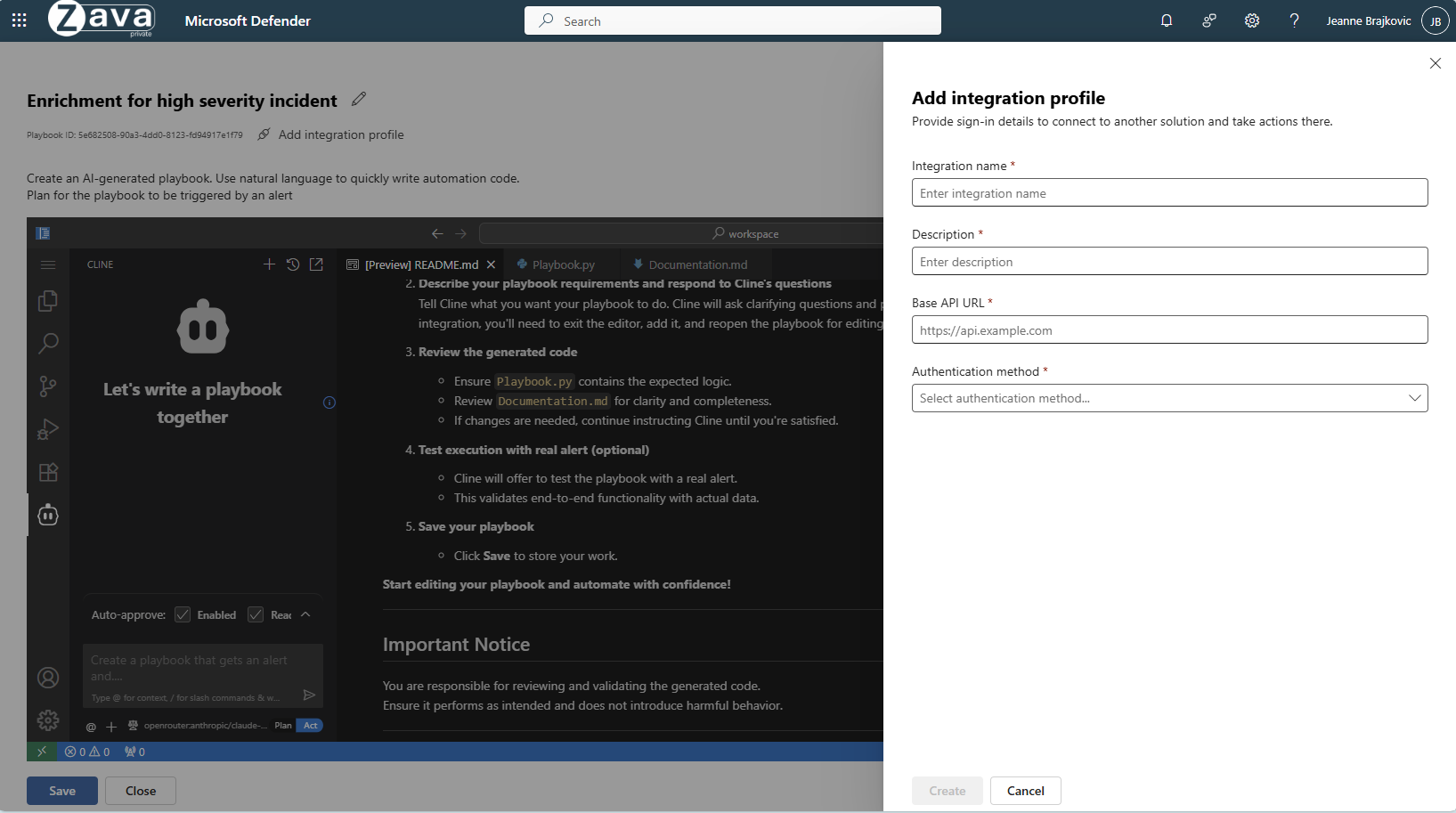
To add integration, select Integration from the Automation tab, or use the Add integration link on top of the VS Code page. You can’t edit the URL of existing integration links. Create a new integration link if needed, and delete the old one.
Enhanced alert trigger
The Enhanced Alert Trigger extends automation capabilities beyond the standard alert trigger by providing:
- Broader coverage: Target alerts across Microsoft Sentinel, Microsoft Defender, and XDR platforms
- Tenant-level application: Ensure consistency across multiple workspaces
- Advanced conditions: Define granular criteria for triggering automation
The Enhanced Alert Trigger enables automatic execution of generated playbooks across your security ecosystem.
Generate a new playbook
To generate a new playbook, configure the required integration profiles and then create the playbook in the embedded VS Code environment.
Step 1. Create a Graph API integration profile and add any other required integrations you want to utilize
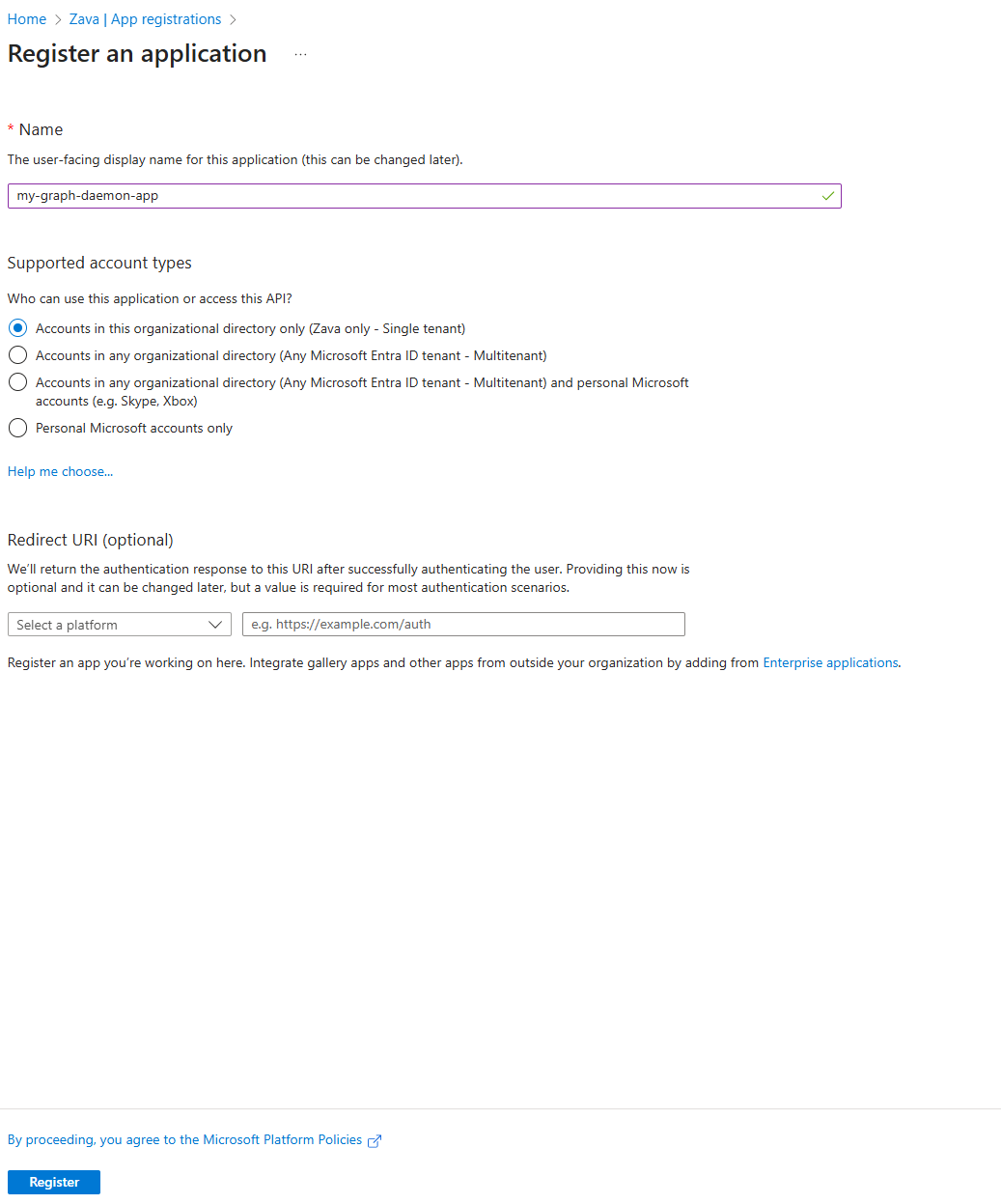
Register a Microsoft Entra ID application and create a Graph API integration profile by completing the following steps:
- In the Azure portal, go to Microsoft Entra ID > Manage > App registrations.
- Select New registration.
- After the registration finishes, select the app registration and go to Overview.
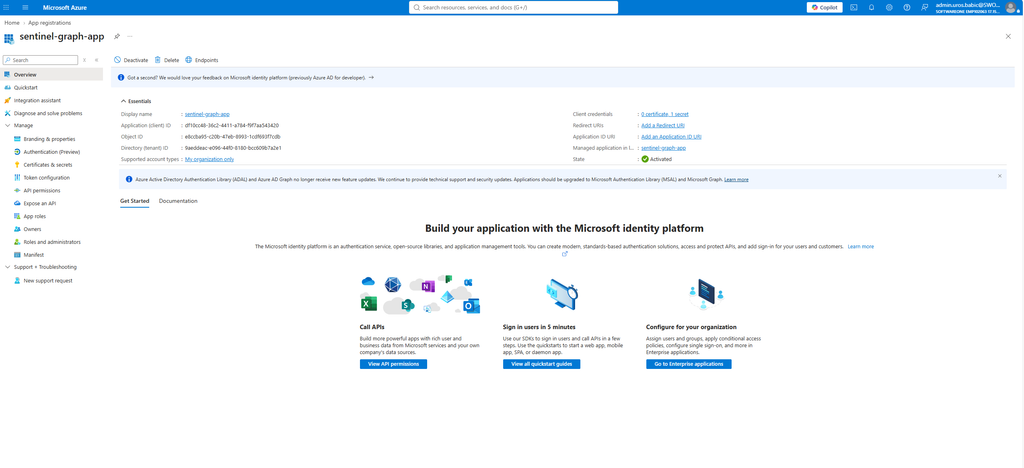
- Copy the Application (client) ID and Directory (tenant) ID. Save these values for later use.
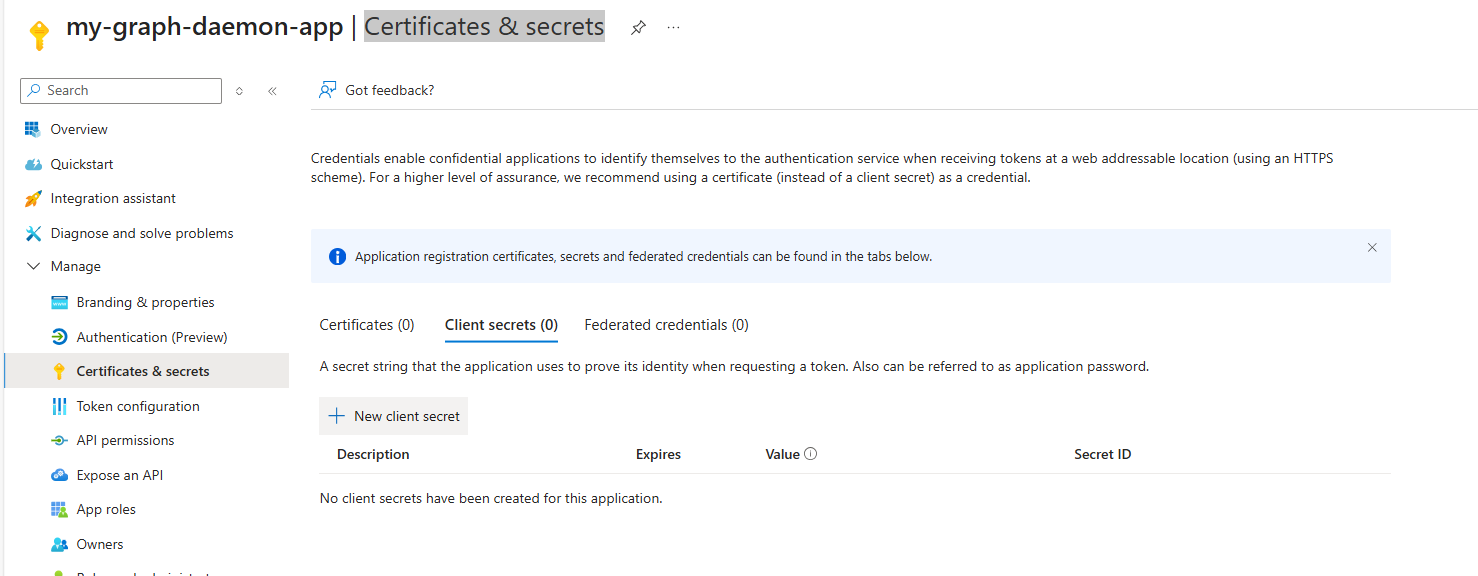
- Go to Manage > Certificates & secrets > Client secrets.
- Select New client secret, provide a name and expiration date, and then select Add.
- Immediately copy the client secret Value and store it securely. You can’t retrieve this value again.
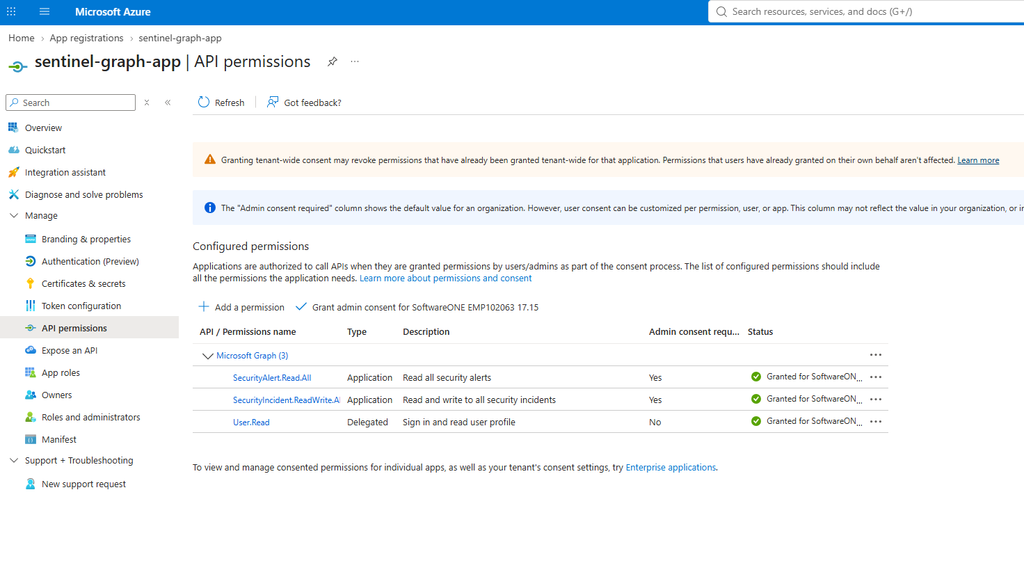
- Configured permissions. Applications are authorized to call APIs when they are granted permissions by users/admins as part of the consent process. The list of configured permissions should include all the permissions the application needs
The updated documentation also clarifies how Integration Profiles work:
– OAuth 2.0 Client Credentials authentication in Integration Profiles currently relies on client secrets.
– The API URL and authentication method cannot be modified after profile creation.
As a result, client secrets remain the primary OAuth 2.0 authentication mechanism within Integration Profiles. This means that credential exposure risk still exists and should be carefully managed.
To further strengthen security and align with Microsoft’s Zero Trust strategy, Integration Profiles should evolve to support additional modern identity approaches, including:
– Managed Identity
– Certificate-based authentication
– Workload Identity Federation
Create the integration profile
After you register the app, create the integration profile in the Microsoft Defender portal:
- In the Microsoft Defender portal, go to Microsoft Sentinel > Configuration > Automation.
Create additional integration profiles
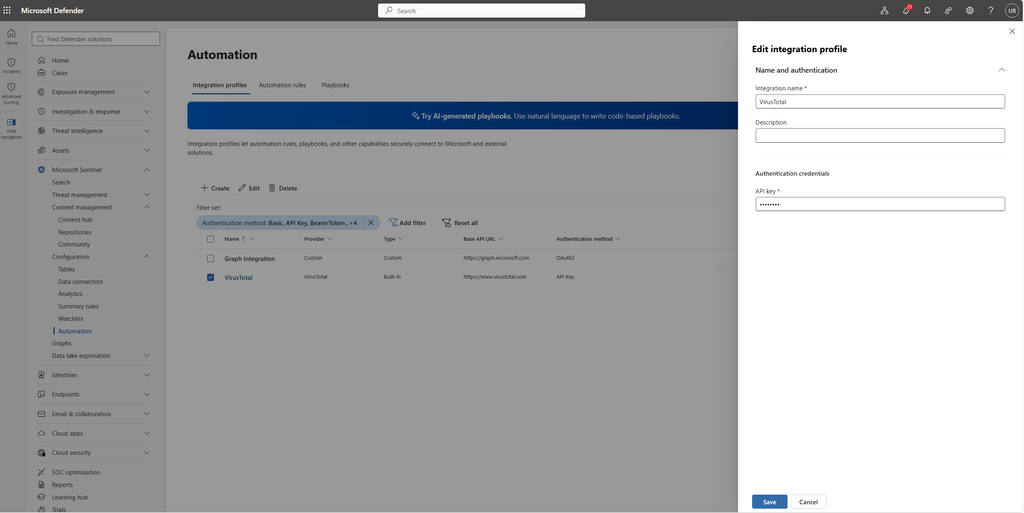
Configure integration profiles for any other third-party services your playbooks use. Each integration requires:
- A unique name and description
- The service’s base API URL
- An authentication method (OAuth2 Client Credentials, API Key, AWS Auth, User and Password, Bearer/JWT, or Hawk)
- Appropriate credentials for the selected authentication method
- Virus Total
Step 2. Create a generated playbook
Create the generated playbook in the Microsoft Defender portal by completing the following steps:
- Select the Playbooks tab.
- Select Create > Playbook Generator.
- Enter a name for your playbook and select Continue.
- An embedded Visual Studio Code environment opens with Cline.
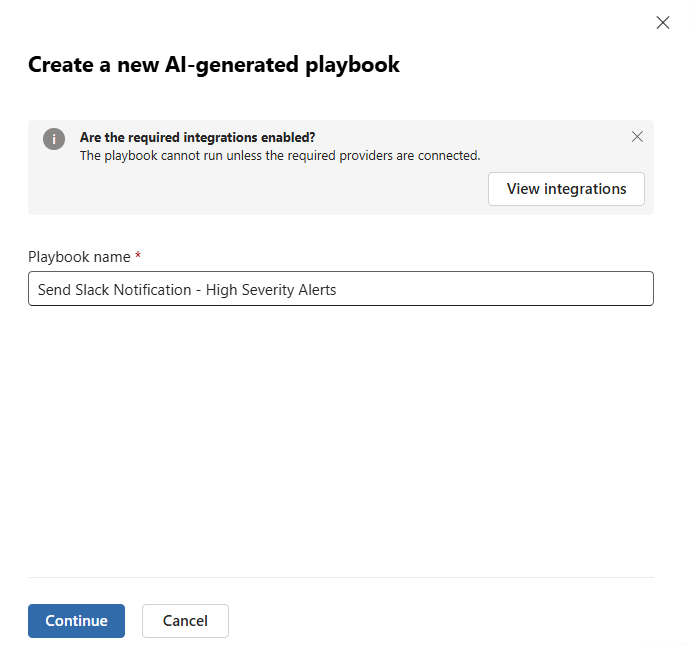
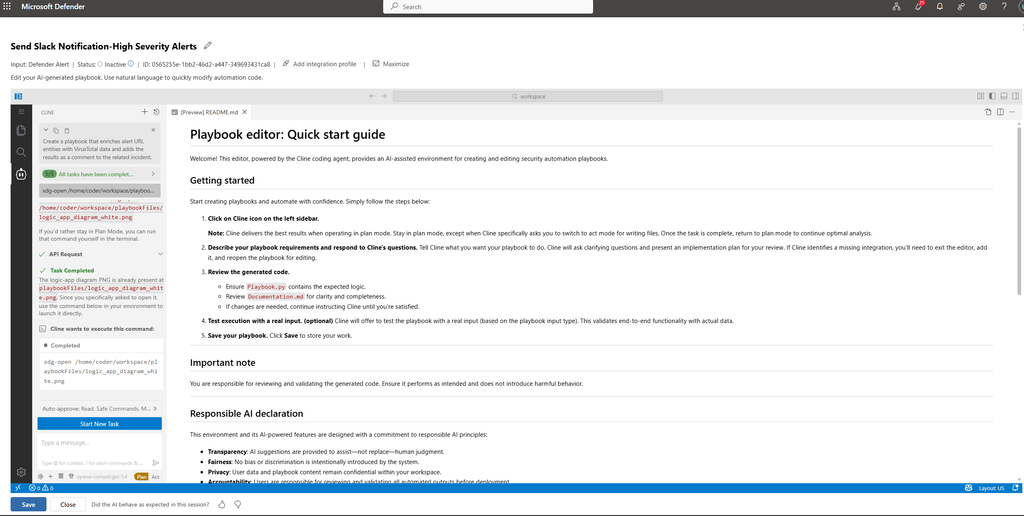
After selecting Playbook Generator, Microsoft Sentinel launches an embedded Visual Studio Code environment powered by Cline, an AI coding assistant. Instead of manually writing automation logic, you can describe the desired workflow in natural language. The AI then generates the playbook code, supporting documentation, flow diagrams, and test artifacts, allowing analysts to focus on automation requirements rather than implementation details.
Work in Plan mode
When the editor opens, the playbook generator session starts in Plan mode. In this mode, you describe your automation requirements and the playbook generator generates a plan for review.
- In the chat interface, describe your playbook requirements in detail. Be explicit about:
- What data to process
- What actions to perform
- What conditions to evaluate
- Expected outcomes
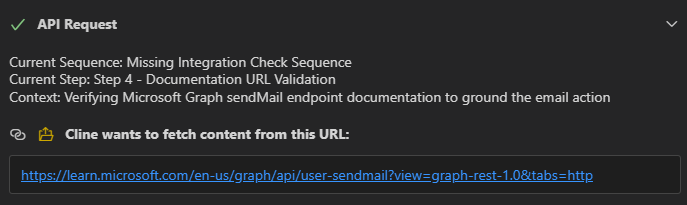
- If the playbook generator requests approval to fetch documentation URLs, approve the request. This approval allows the playbook generator to access relevant API documentation to generate accurate code.
- The playbook generator analyzes your request and might:
- Ask clarifying questions
- Request API documentation if it can’t be accessed via web search
- Notify you of missing integration profiles
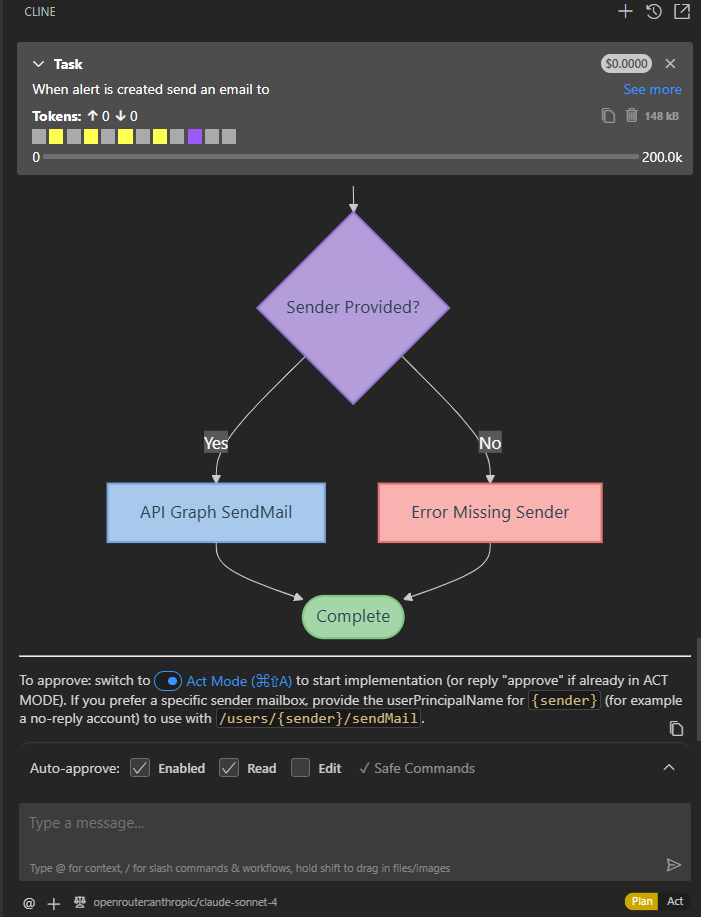
- Generate a preliminary plan and flow diagram
- If the playbook generator identifies missing integration profiles:
- Select Save and exit the VS Code environment.
- Create the missing integration profiles in the Integration Profiles tab.
- Return to edit the playbook to continue.
Review and approve the plan
After the playbook generator produces a plan, review and approve it before proceeding to code generation:
- Review the generated plan and flow diagram carefully.
- If you need changes, describe the modifications in the chat. The playbook generator revises the plan accordingly.
- When satisfied with the plan, follow instructions and switch to Act mode.
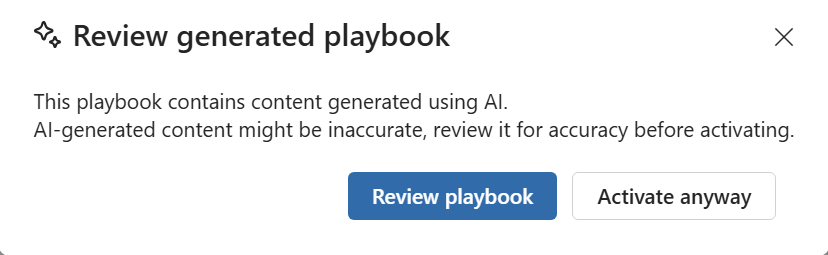
Newly created playbooks are disabled by default. After you validate and save your playbook, you must enable it before it can run.
Enable and deploy your playbook
After creation, your generated playbook requires activation and an alert trigger to begin automating responses.
Enable the playbook
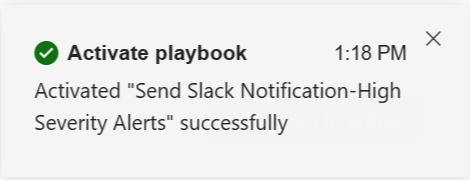
Generated playbooks are created in a disabled state. Enable the playbook by completing the following steps:
- In the Automation page, select the Active Playbooks tab.
- Locate your newly created playbook.
- Switch the playbook status to Activate.
Create an enhanced alert trigger
Create an enhanced alert trigger to automatically run the playbook when specific alert conditions are met:
- Go to the Automation Rules tab.
- Select Create to define a new rule with enhanced trigger.
- Set up the trigger conditions: Setting Description
- Conditions Define criteria such as alert title, severity, provider, or other attributes
- Workspaces Select one or more workspaces where this rule applies. Workspaces requiring additional permissions appear grayed out
- Actions Select
- Run Playbook and choose your enabled playbook
- Select Save.
Your generated playbook now automatically runs when alerts that match your specified conditions are generated.
Monitor playbook execution
To view execution details for your generated playbook:
- Go to the incident page that contains the relevant alert.
- Select the Activities tab.
- Find the row labeled run playbook to view the execution status and details.
Example use case
The following are examples of prompts you can use to generate playbooks for common scenarios:
- Create a playbook that enriches alert URL entities with VirusTotal data and adds the results as a comment to the related incident.
Alert URL VirusTotal Enrichment Commenter
Overview
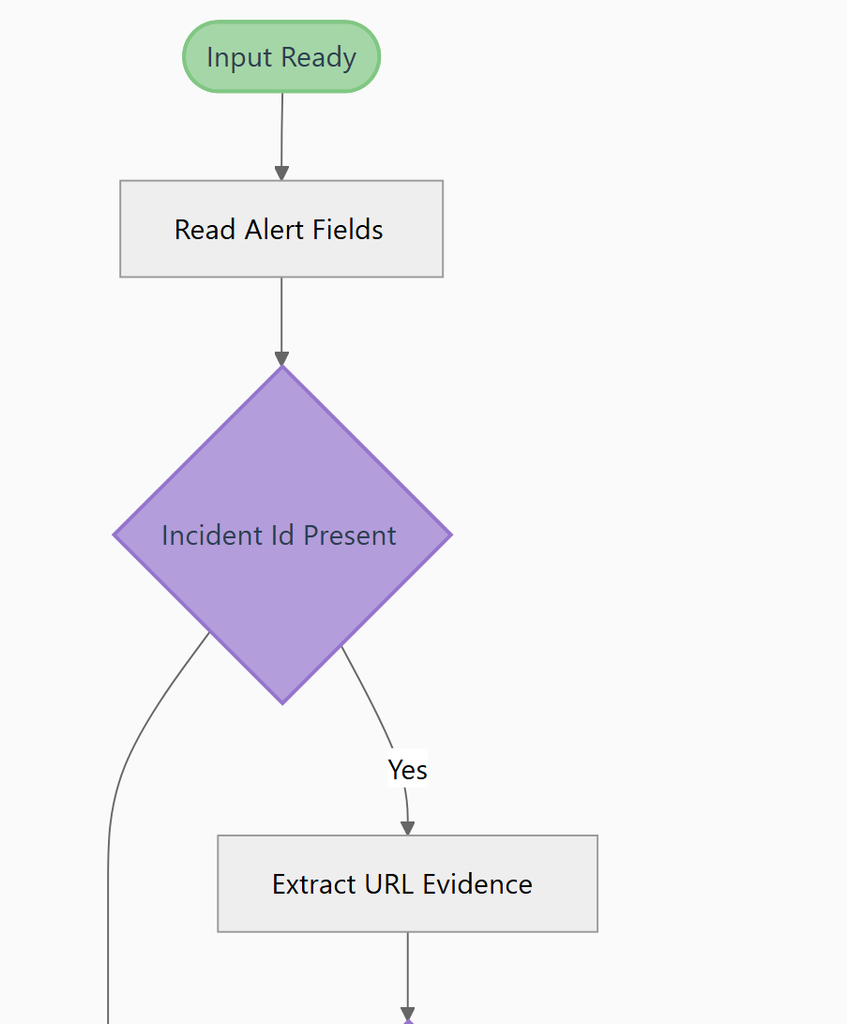
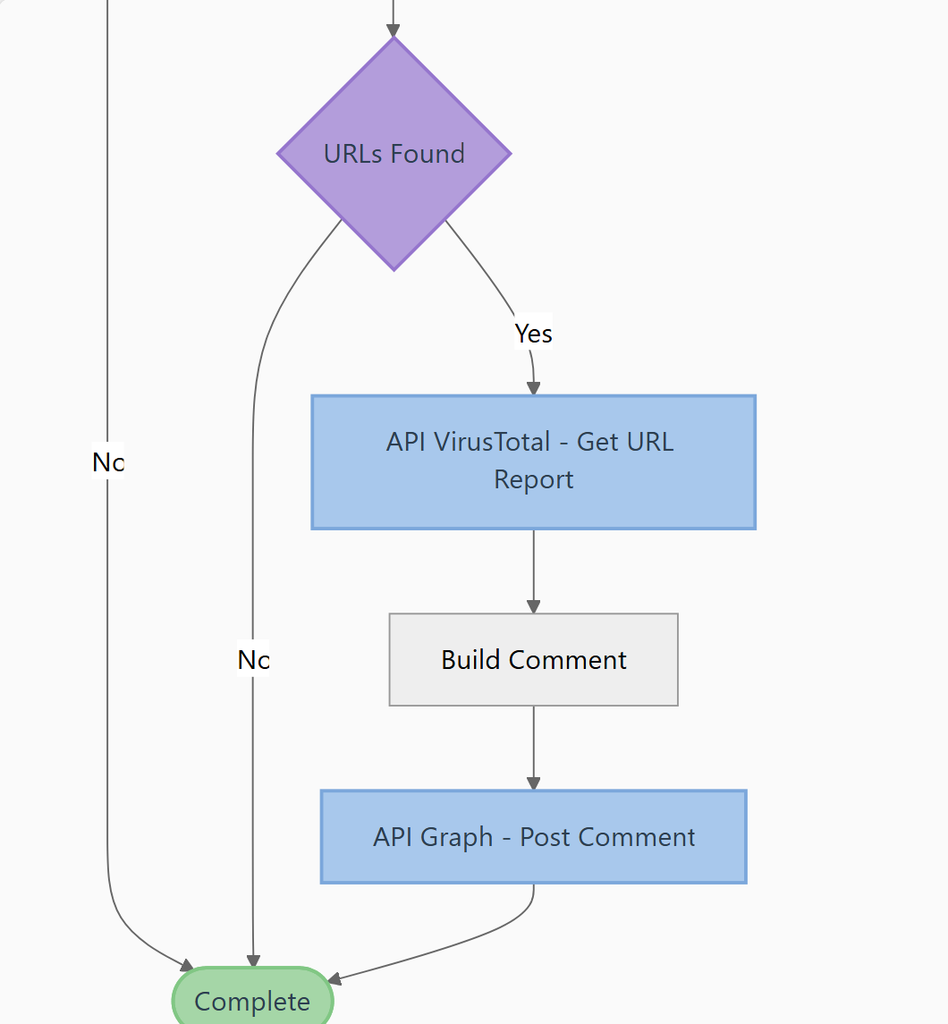
This playbook reads the alert input from Microsoft Graph Security, extracts URL evidence entries, enriches each unique URL with VirusTotal, and posts a summary comment to the related Microsoft Graph incident. It is designed for alert-bound execution and acts only when the alert includes both URL evidence and a related incidentId.
API Integrations Used
VirusTotal – https://www.virustotal.com
Purpose: Enrich URL evidence with reputation and last analysis statistics. Endpoints:
GET /api/v3/urls/{id}– Retrieve VirusTotal analysis details for a URL identifier. Documentation: https://docs.virustotal.com/reference/url-info
Microsoft Graph API – https://graph.microsoft.com
Purpose: Add the enrichment results as a comment to the related incident. Endpoints:
POST /security/incidents/{incidentId}/comments– Create a comment on the incident related to the input alert. Documentation: https://learn.microsoft.com/en-us/graph/api/security-incident-post-comments
Logic Summary
- Treat the playbook input as a Microsoft Graph security alert and read
idandincidentId. - Exit early if the alert has no id, no related incident, or no URL evidence.
- Iterate through
alert.evidenceand keep only uniqueurlEvidenceentries. - Convert each URL into the unpadded base64url identifier required by VirusTotal.
- Query VirusTotal for each URL and collect reputation, category, and last-analysis statistics.
- Build a readable multiline summary covering every enriched URL.
- Post the summary as a comment to the related Microsoft Graph incident.
Flow Diagram
This flow diagram shows the current URL-enrichment behavior: the playbook reads the alert input, checks for a related incident ID, extracts URL evidence, enriches each discovered URL with VirusTotal, and posts the enrichment summary to the related incident only when URL evidence is present.
Logic App Style Diagram (PNG): playbookFiles/logic_app_diagram_white.png
Color Guide:
- 🟢 Green = Start/End points
- 🔵 Blue = API calls
- 🟣 Purple = Decision points
- 🔴 Pink = Error handlers
Why This Matters for SOC Teams
For security operations teams, one of the biggest challenges is turning operational requirements into reliable automation. Playbook Generator helps bridge the gap between analysts and automation engineers by allowing teams to focus on intent rather than implementation.
Potential benefits include:
- Faster development of security automations
- Reduced time spent producing documentation
- Improved consistency across automation workflows
- Lower barrier to entry for security analysts
- Accelerated automation adoption across Microsoft Sentinel and Defender XDR
This capability can be especially valuable for MSSPs and large enterprises where automation use cases are continuously evolving.
Agentic AI and the Future of SOC Automation
The Playbook Generator represents one of the first practical examples of Agentic AI capabilities appearing directly inside Microsoft Sentinel. Rather than manually translating requirements into automation code, security teams define objectives while AI generates implementation artifacts.
This approach shifts the role of analysts and engineers from writing automation to supervising, validating, and improving AI-generated workflows.
As Agentic SOC capabilities continue evolving across Microsoft Security, technologies like Playbook Generator provide an early glimpse of how security operations may be built and managed in the future.
Conclusion
The AI-powered Playbook Generator introduces a fundamentally different approach to security automation in Microsoft Sentinel and Defender XDR. Instead of spending hours designing workflows and writing code, security teams can describe the desired outcome and collaborate with AI to generate implementation-ready playbooks.
While human review, governance, and testing remain critical, the ability to generate code, documentation, diagrams, and test artifacts through natural language represents a significant step toward Agentic SOC operations.
This is not just another automation feature. It is an early indicator of how future security operations platforms will combine human expertise with AI-driven engineering to accelerate incident response and automation at scale.
Source: https://learn.microsoft.com/en-us/azure/sentinel/automation/generate-playbook