The new SOAR playbook generator introduces an entirely new way of building security automation in Microsoft Sentinel and XDR. Instead of manually writing code, analysts can now co‑create Python‑based automation workflows through a natural conversation with Cline Visual Code Studio, an integrated AI coding agent.
Describe what you want to automate, and the generator produces:
- Validated Python playbook
- Embedded documentation
- Visual flow diagrams
- Test cases
- Deployment‑ready package
All of this happens inside a built‑in Visual Studio Code environment within the Microsoft Defender portal—so you can author, refine, and test playbooks without leaving the interface.
Core Capabilities
1. Co‑author with AI
Interact with Cline conversationally. Explain the logic, conditions, or integration you want to use—AI writes the full Python automation behind the scenes.
2. Integrated testing
Provide a real alert as input and immediately validate the behavior before deploying the playbook.
3. Automatic documentation
Full documentation and a visual flow diagram are generated automatically, making handoff and operational oversight seamless.
4. Third‑party integrations
Use Integration Profiles to securely connect external APIs. The generator dynamically constructs REST requests for the configured providers.
5. Broad alert coverage
Generated playbooks support alerts across Sentinel, Microsoft Defender, and the unified XDR platform, enabling consistent automation across your entire tenant.
Prerequisites
Environment requirements
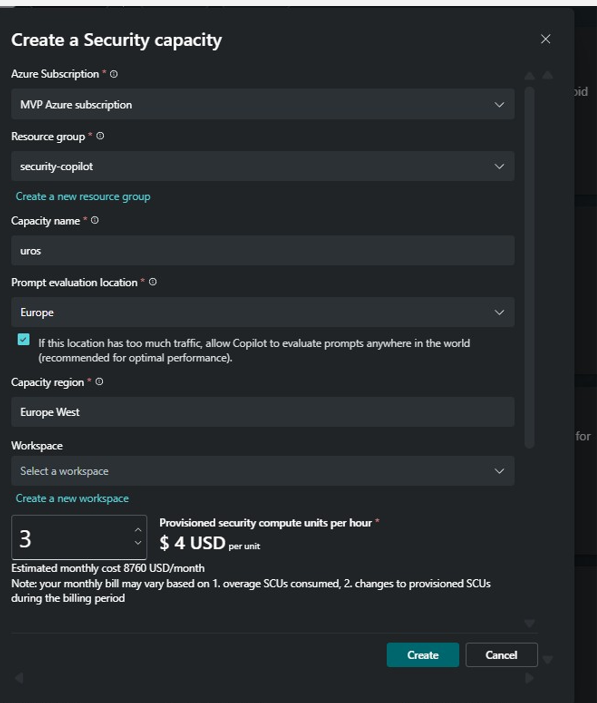
- Security Copilot: Your tenant must be Security Copilot enabled with SCUs available You aren’t billed for SCUs, but their availability is a technical requirement. For this purpose I used 3 SCU.
- Microsoft Sentinel workspace: Your tenant must have a Microsoft Sentinel workspace onboarded to Microsoft Defender.
- Recommended Data sharing preferences: In Security Copilot, enable the first slider, Allow Microsoft to capture data from Security Copilot to validate product performance using human review, in Customer Data Sharing preferences.
Required roles and permissions
To use playbook generator, you need the following permissions:
- To author Automation Rules: You need the Microsoft Sentinel Contributor role on the relevant Workspaces or Resource Groups containing them in Azure.
- To use the playbook generator: You need the Detection tuning role in Microsoft Entra in Azure.
Configure a dedicated Security Copilot workspace
If you don’t already have a dedicated Security Copilot workspace for AI-generated playbooks that’s set in geo US or Europe, or allowing cross-region evaluation,
- In the Create a new workspace dialog:
- Enable the following privacy flags:
- Allow Microsoft to capture data to validate product performance
- Allow Microsoft to capture and review data to build and validate Microsoft’s security AI model
- Accept the Terms and Conditions.
- Under Capacity, select Create a new capacity.
- Enable the following privacy flags:
Enhanced alert trigger
The Enhanced Alert Trigger extends automation capabilities beyond the standard alert trigger by providing:
- Broader coverage: Target alerts across Microsoft Sentinel, Microsoft Defender, and XDR platforms
- Tenant-level application: Ensure consistency across multiple workspaces
- Advanced conditions: Define granular criteria for triggering automation
This trigger mechanism enables automatic execution of generated playbooks across your security ecosystem.
Generate a new playbook
Workflow
- Prereqs & roles
– Security Copilot enabled (3 SCUs), Sentinel workspace onboarded, data‑sharing slider enabled (recommended).
– Permissions: Sentinel Contributor (automation rules) + Detection Tuning in Entra (generator access). - Integration setup
– Register Entra app (Client ID, Tenant ID, Client Secret).
– Create Integration Profile for Microsoft Graph in Defender → Sentinel → Automation. - Generate with AI
– Defender portal → Sentinel → Automation → Playbooks → Create → Playbook Generator.
– Name:pb-soc-incidentgraphsendmail1.
– Co‑author logic with Cline in the embedded VS Code; review the AI plan & diagram; switch to Act to generate code. - Artifacts produced automatically
–Playbook.py(Python logic)
–Documentation.md(explanation + flow diagram)
–PlaybookTests.json(mock test cases) - Validate
– Run the validation script in the sandbox (mock‑only mode).
– Confirm that expected Graph calls and decisions match the plan. - Package & prepare deploy
– Exportedplaybook_package.zipfor import/enabling in the environment.
Step 1. Create a Graph API integration profile and add any other required integrations you want to utilize
- In the Azure portal, go to Microsoft Entra ID > Manage > App registrations.
- Select New registration.
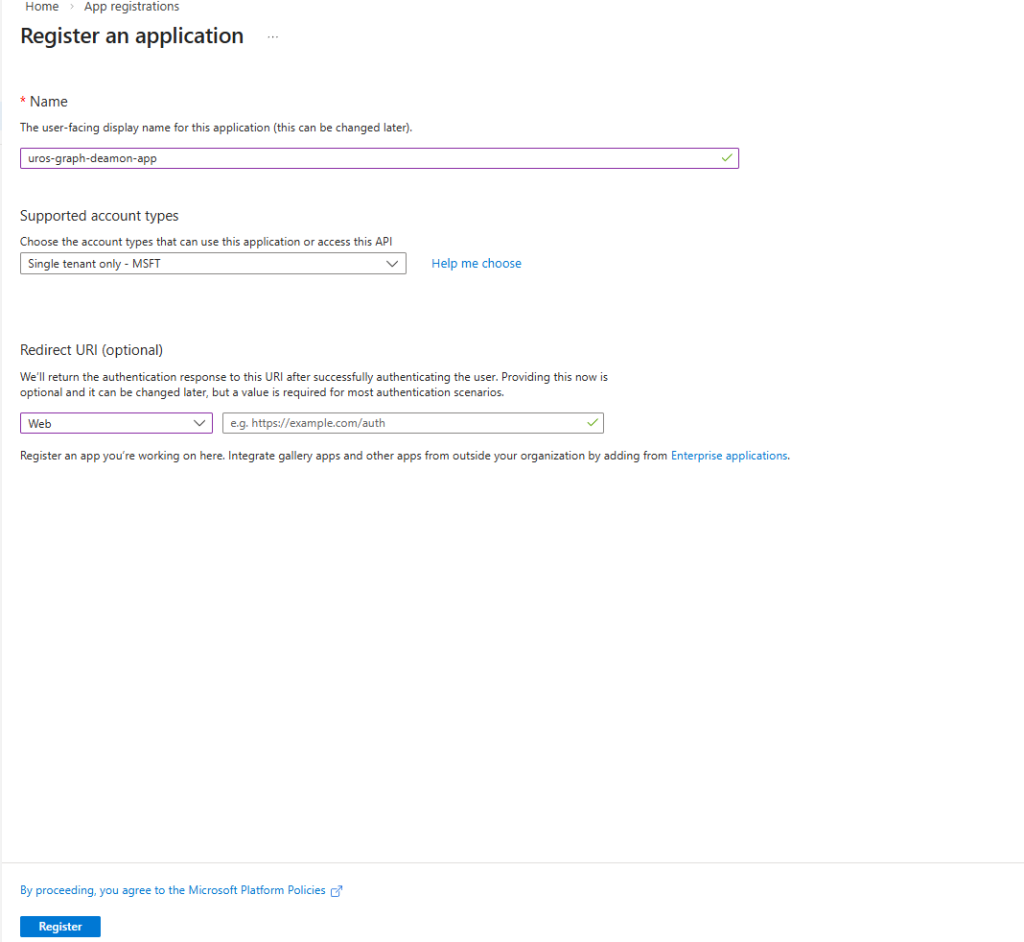
After the registration finishes, select the app registration and go to Overview.
Copy the Application (client) ID and Directory (tenant) ID. Save these values for later use.
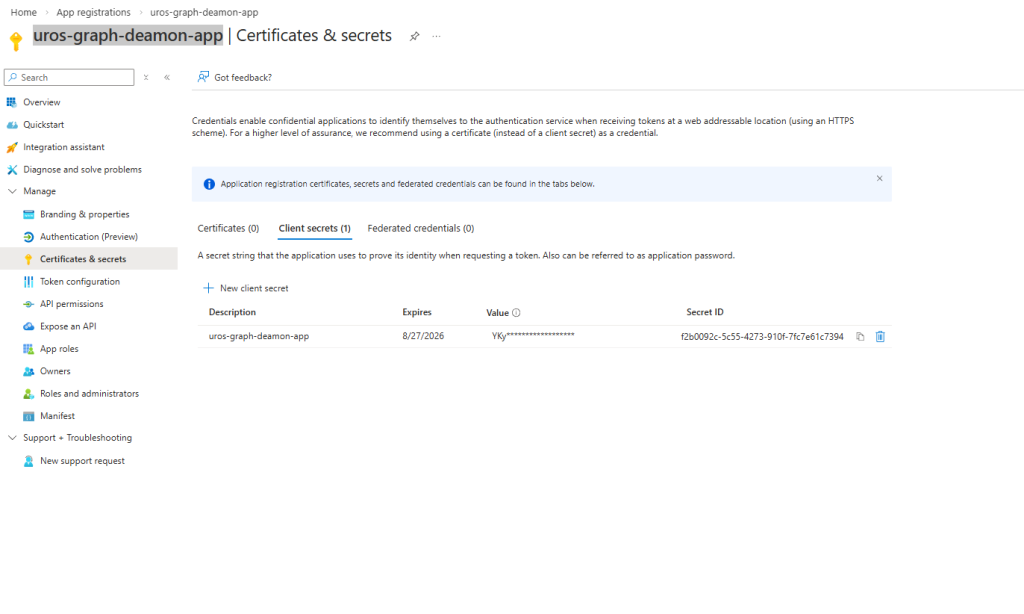
Go to Manage > Certificates & secrets > Client secrets.
Select New client secret, provide a name and expiration date, and then select Add.
Create the integration profile
- In the Microsoft Defender portal, go to Microsoft Sentinel > Configuration > Automation.
- Select the Integration Profiles tab.
- Select Create and provide the following information:
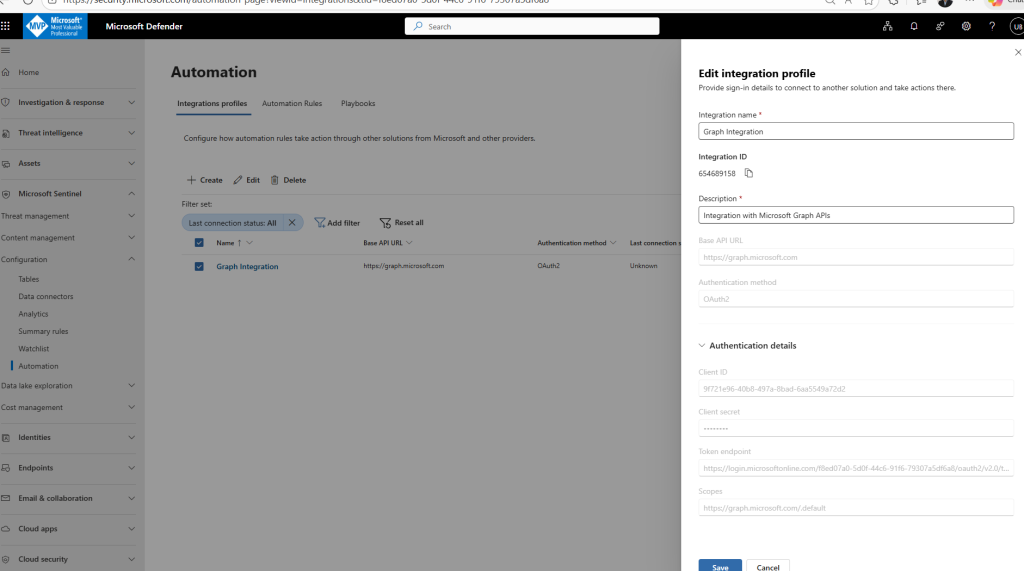
and create playbook in Defender XDR name pb-soc-incidentgraphsendmail
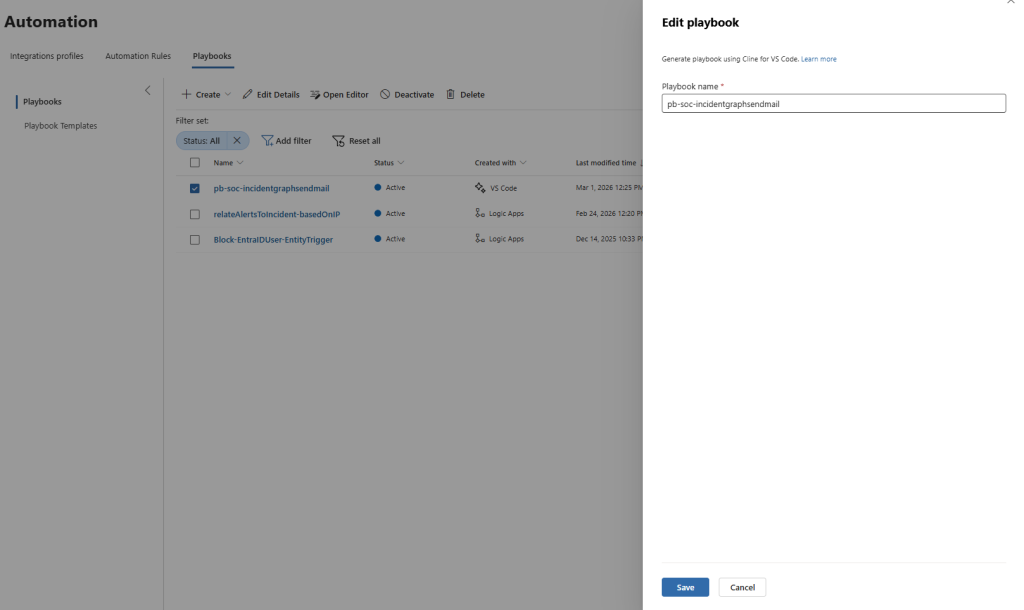
Step 2. Create a generated playbook
- Select the Playbooks tab.
- Select Create > Playbook Generator.
- Enter a name for your playbook pb-soc-incidentgraphsendmail1 and select Continue.
- An embedded Visual Studio Code environment
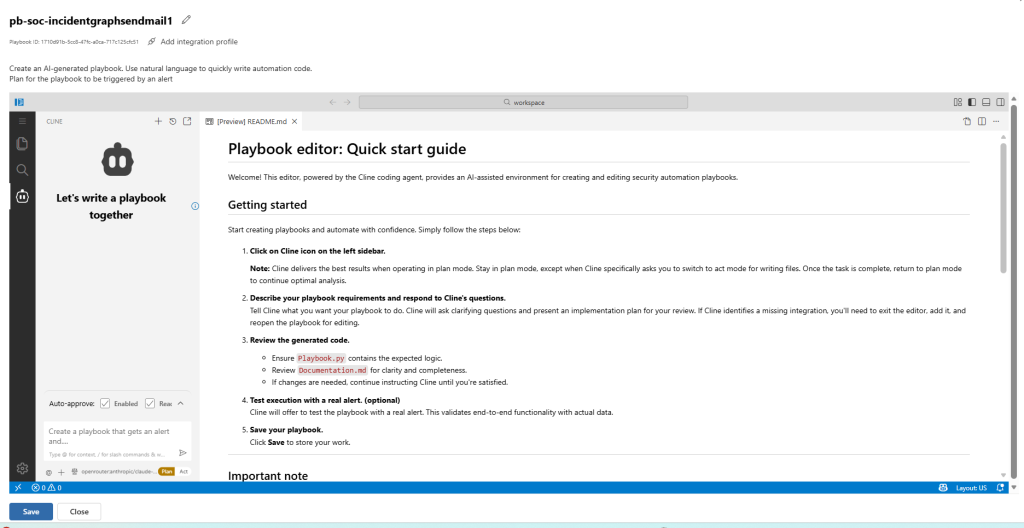
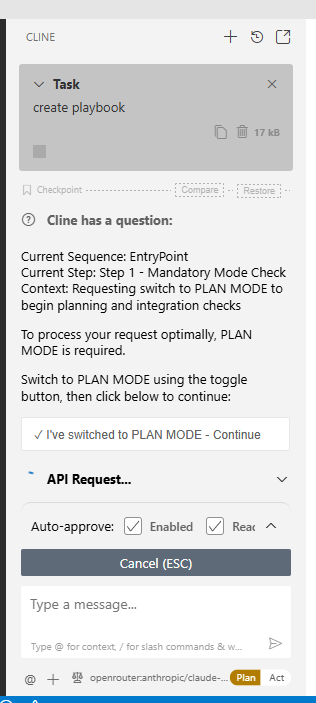
Review and approve the plan
- Review the generated plan and flow diagram carefully.
- If you need changes, describe the modifications in the chat. The playbook generator revises the plan accordingly.
- When satisfied with the plan, follow instructions and switch to Act mode
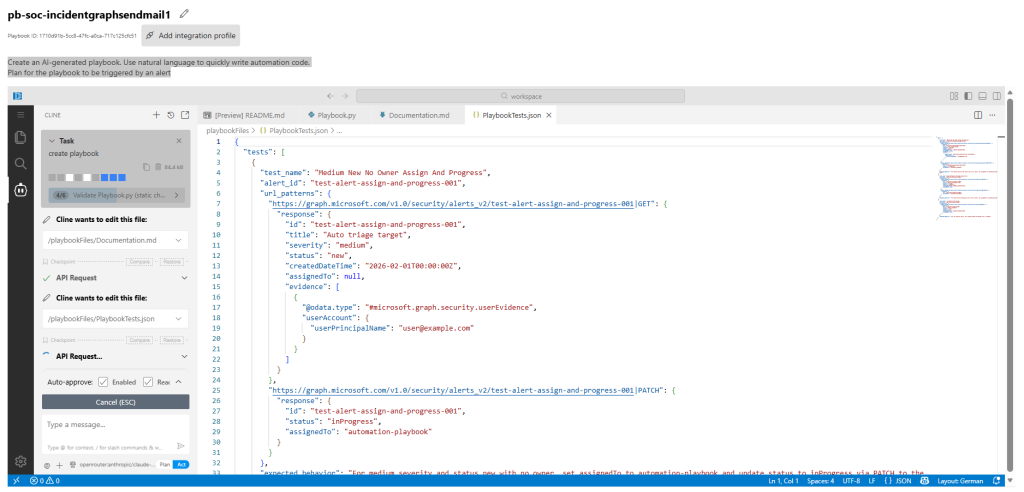
Create an AI-generated playbook. Use natural language to quickly write automation code.
Plan for the playbook to be triggered by an alert
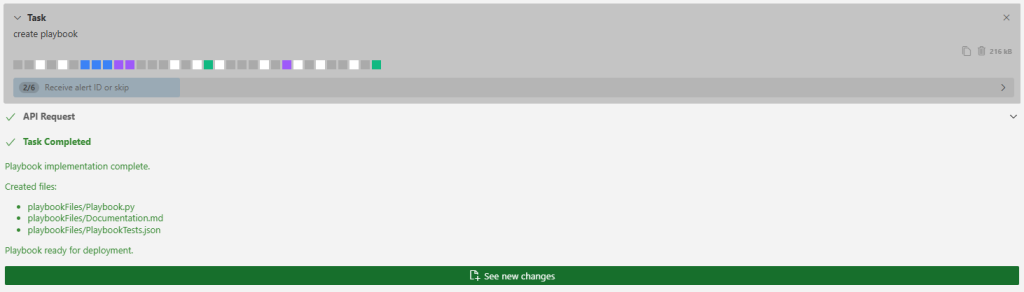
Task Completed
Playbook implementation complete.
Created files:
- playbookFiles/Playbook.py
- playbookFiles/Documentation.md
- playbookFiles/PlaybookTests.json
Playbook ready for deployment.
coder@SandboxHost-639079633312835057:~/workspace$ python3 ValidatePlaybookScript.py –playbook-path playbookFiles/Playbook.py
Using paths:
Playbook: playbookFiles/Playbook.py
coder@SandboxHost-639079633312835057:~/workspace$ python3 ValidatePlaybookScript.py –playbook-path playbookFiles/Playbook.py
Using paths:
Playbook: playbookFiles/Playbook.py
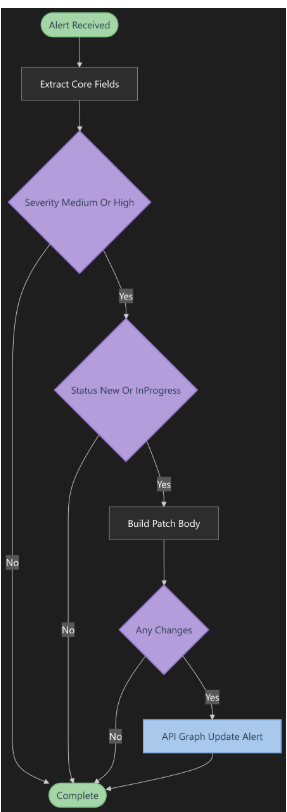
This diagram illustrates how the AI‑generated playbook automatically handles alert normalization and conditional response logic. Once an alert is received, the playbook extracts all core fields and immediately evaluates whether the severity is Medium or High. If the alert is relevant, it checks whether the status is New or InProgress—ensuring updates are applied only to active cases.
The AI then builds a PATCH body with the required updates and validates if any actual changes are needed. When changes exist, the playbook executes a Microsoft Graph API call to update the alert accordingly. If not, it simply completes the workflow.
This clean, structured decision flow shows how AI‑designed automation removes noise, applies consistent logic, and updates alerts with precision across the SOC.
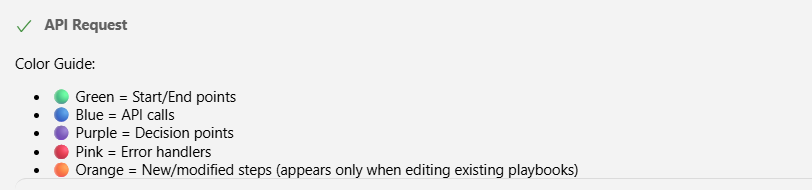
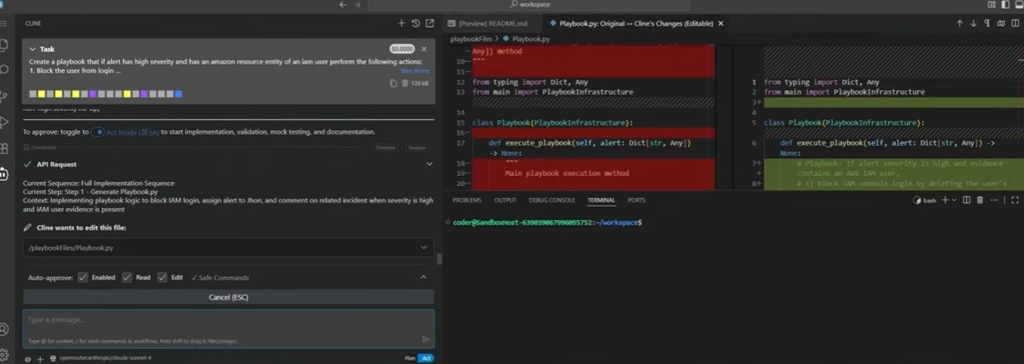
The new AI Playbook Generator transforms playbook development into a simple, conversational workflow. Instead of manually writing Python, an analyst describes the intent in natural language, and the AI automatically creates a detailed execution plan, proposes code changes, and shows a full diff preview before applying them. The system understands alert context—like high‑severity incidents—and generates the exact SOAR logic needed, including blocking actions, comments, and assignments.
This marks a shift from traditional, code‑heavy playbook engineering to an intuitive, collaborative model where analysts guide the intent and AI handles the implementation. It’s automation built the way SOC teams actually think: faster, consistent, and immediately deployable.
Testing the Playbook
Using the built‑in validation:
python3 ValidatePlaybookScript.py –playbook-path playbookFiles/Playbook.py
Results
- 3/3 test scenarios passed
- Mock‑only API validation successful
- Graph API calls matched expected patterns
- Full execution logs confirmed correct triage behavior
Playbook Logic (Summary)
✔ Auto-triage Microsoft 365 Defender alerts using Graph Security API
✔ Target only medium/high alerts with status new/inProgress
✔ Auto‑assign owner if empty
✔ Move new alerts to inProgress
✔ Safe dictionary access, no secrets, clean code patterns
Deployment package created:
playbook_package.zip (Playbook + Documentation + Tests)
Automation rule alert trigger limitations
Source: Microsoft docs:
- Trigger limitations: Enhanced Alert Trigger rules don’t support priority ordering or expiration dates
- Available actions: Currently, the only available actions are triggering generated Playbooks and updating action alerts
- Workspace permissions – You must explicitly specify the workspaces where you have permissions; the trigger doesn’t apply to workspaces you can’t access.
- Separate rule tables – Enhanced Alert Trigger rules live alongside Standard Alert Trigger rules in a separate Automation Rules table. Currently, there’s no automatic migration of Standard Alert Trigger rules.
- Run result visibility – Automation rule run results are not written to the Sentinel Health Table. However, you can view the runs and their outcomes in the Activity tab of the Incident that contains the targeted alert.
- The maximum number of active automation rules you can create is 500 per tenant.
- You can execute one action per rule.
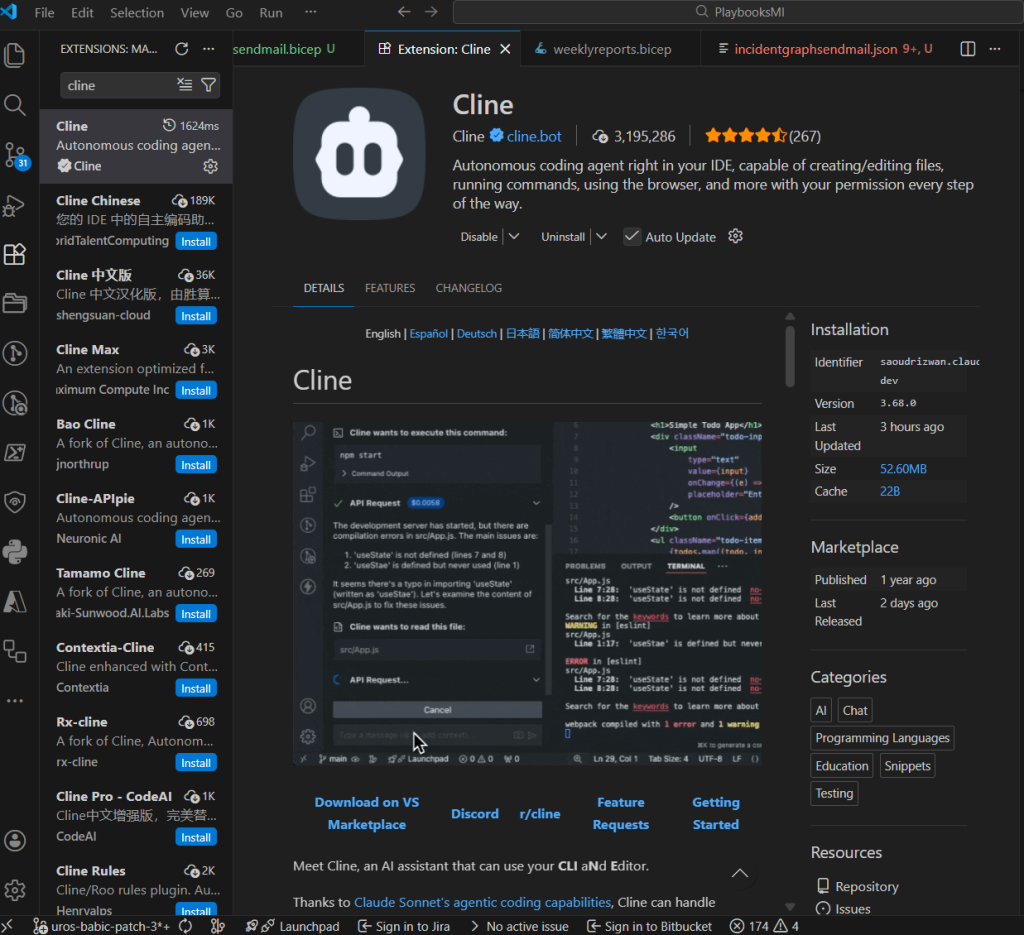
What is Cline in Visual Studio Code?
Cline is an autonomous AI coding agent available as an extension inside Visual Studio Code. It enhances your development workflow by allowing you to interact with your IDE through natural language. Cline can:
- create and edit files
- write and refine code
- run commands and scripts
- browse content with permission
- help debug and validate logic
All actions are performed safely and transparently, with your approval required before execution.
In the context of Microsoft Sentinel’s Playbook Generator, Cline acts as the AI engine behind the embedded VS Code experience—guiding you through the process, generating Python automation logic, and assisting with documentation and testing. It brings conversational coding directly into the security automation workflow.
Conclusion
The AI playbook generator fundamentally changes how SOC teams build automation:
- You describe intent in natural language
- AI proposes a plan
- You approve
- AI generates the full Python playbook, documentation, diagrams, and test suite
The AI Playbook Generator is not just streamlining how SOC teams create automation—it is redefining the discipline entirely. By turning natural‑language intent into fully engineered, production‑ready playbooks, it removes traditional barriers between security analysts, developers, and automation experts. The result is a unified, conversational workflow where ideas move from concept to execution in minutes, not days.
This evolution signals a broader transformation: security automation is shifting from manual scripting to intelligent co‑creation with AI. Analysts can focus on strategy and response logic, while the system handles code generation, validation, documentation, and testing. That means fewer errors, faster deployment, and automation that scales consistently across the entire SOC.
Ultimately, this capability lays the foundation for an era where every SOC—regardless of size or engineering maturity—can build sophisticated SOAR workflows with the speed, precision, and reliability of world‑class automation teams. It’s not just a new feature. It’s the beginning of a smarter, more intuitive, and radically more efficient security operations model.