
Multitenant management in Microsoft Defender XDR and Microsoft Sentinel brings your security operations teams a single, unified experience for all managed tenants. Instead of switching between portals, analysts gain a consolidated view that accelerates incident investigation, advanced hunting, and threat response across multiple environments.
This unified approach not only improves operational efficiency but also strengthens security posture by enabling cross-tenant visibility and correlation of signals. Each tenant can be linked to one primary Microsoft Sentinel workspace and multiple secondary workspaces—where a workspace refers to a Log Analytics workspace with Sentinel enabled—ensuring flexible and scalable monitoring across your organization.
For each tenant, the Defender portal allows you to connect to one primary workspace and multiple secondary workspaces for Microsoft Sentinel. In the context of this article, a workspace is a Log Analytics workspace with Microsoft Sentinel enabled.
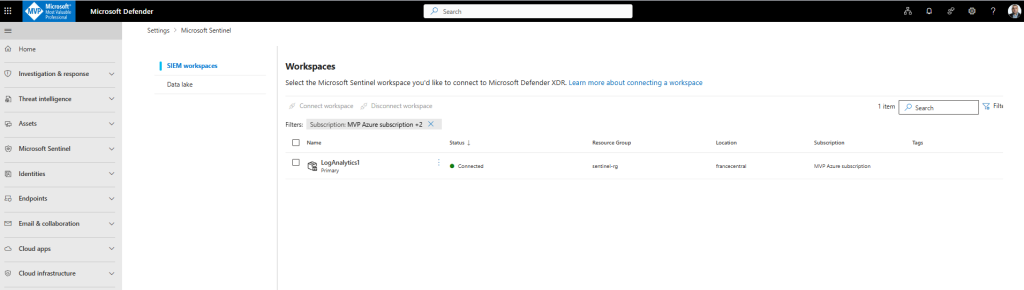
If you have tenants with Microsoft Sentinel workspaces onboarded to the Defender portal, you’re able to:
- Triage incidents and alerts across Security Information and Event Management (SIEM) and eXtended Detection and Response (XDR) data.
- Proactively search for SIEM and XDR data across multiple tenants.
- Manage cases across multiple tenants.
Each workspace must be onboarded to the Defender portal for each of your tenants separately, as you would in a single-tenant scenario.
Benefits of multitenant management
Some of the key benefits you get with multitenant management for Defender XDR and the Microsoft Sentinel in the Defender portal include:
1. Unified Visibility
Gain a single, consolidated view of all managed tenants in the Defender portal. This eliminates the need to switch between multiple portals, reducing complexity and improving situational awareness.
2. Faster Incident Response
Security teams can investigate incidents across tenants from one interface, enabling quicker triage, correlation of alerts, and coordinated response actions.
3. Advanced Hunting Across Tenants
Run queries and threat-hunting scenarios across data from multiple tenants simultaneously, improving detection of cross-tenant attack patterns and lateral movement.
4. Consistent Role-Based Access Control
Apply Unified RBAC roles centrally across all tenants, ensuring consistent permissions and least-privilege access for analysts and admins.
5. Simplified Governance
Manage roles, assignments, and scopes from the Multitenant Organization (MTO) portal, reducing administrative overhead and enforcing standardized security operations.
6. Flexible Sentinel Integration
Connect each tenant to one primary and multiple secondary Microsoft Sentinel workspaces for scalable log ingestion and analytics, while maintaining centralized visibility.
7. Improved Operational Efficiency
Reduce time spent on manual tenant switching and configuration, allowing SOC teams to focus on threat detection and remediation rather than administrative tasks.
Multitenant management include several capability:
| Capability | Description |
|---|---|
| Incidents & alerts > Incidents | Manage incidents originating from multiple tenants. |
| Incidents & alerts > Alerts | Manage alerts originating from multiple tenants. |
| Cases | Manage cases originating from multiple tenants. |
| Hunting > Advanced hunting | Proactively hunt for intrusion attempts and breach activity across multiple tenants at the same time. |
| Hunting > Custom detection rules | View and manage custom detection rules across multiple tenants. |
| Assets > Devices > Tenants | For all tenants and at a tenant-specific level, explore the device counts across different values such as device type, device value, onboarding status, and risk status. |
| Endpoints >Vulnerability Management > Dashboard | The Microsoft Defender Vulnerability Management dashboard provides both security administrators and security operations teams with aggregated vulnerability management information across multiple tenants. |
| Endpoints > Vulnerability management > Tenants | For all tenants and at a tenant-specific level, explore vulnerability management information across different values such as exposed devices, security recommendations, weaknesses, and critical CVEs. |
| Configuration > Settings | Lists the tenants you have access to. Use this page to view and manage your tenants. |
Set up Microsoft Defender multitenant management
Microsoft Defender XDR prerequisites:
Licensing requirements
Microsoft Defender XDR natively correlates Microsoft security products’ signals, providing security operations teams a single pane of glass to detect, investigate, respond, and protect your assets. These signals are dependent on the license that you have and the access provisioned to you.
Any of these licenses give you access to Microsoft Defender XDR features via the Microsoft Defender portal without any additional cost:
- Microsoft 365 E5 or A5
- Microsoft 365 E3 with the Microsoft Defender Suite add-on
- Microsoft 365 E3 with the Enterprise Mobility + Security E5 add-on
- Microsoft 365 A3 with the Microsoft 365 A5 Security add-on
- Windows 10 Enterprise E5 or A5
- Windows 11 Enterprise E5 or A5
- Enterprise Mobility + Security (EMS) E5 or A5
- Office 365 E5 or A5
- Microsoft Defender for Endpoint
- Microsoft Defender for IoT – Enterprise IoT protection (includes protection for enterprise IoT devices with the Microsoft 365 E5 (ME5) or E5 Security license)
- Microsoft Defender for Identity
- Microsoft Defender for Cloud Apps or Cloud App Discovery
- Microsoft Defender for Office 365 (Plan 2)
- Microsoft 365 Business Premium
- Microsoft Defender for Business
Go to Microsoft 365 admin center (admin.microsoft.com) to view your existing licenses. In the admin center, go to Billing > Licenses.
Required permissions
You must at least be a security administrator in Microsoft Entra ID to turn on Microsoft Defender XDR.
Set up multitenant management
The first time you use Microsoft Defender multitenant management, you need setup the tenants you want to view and manage. To get started:
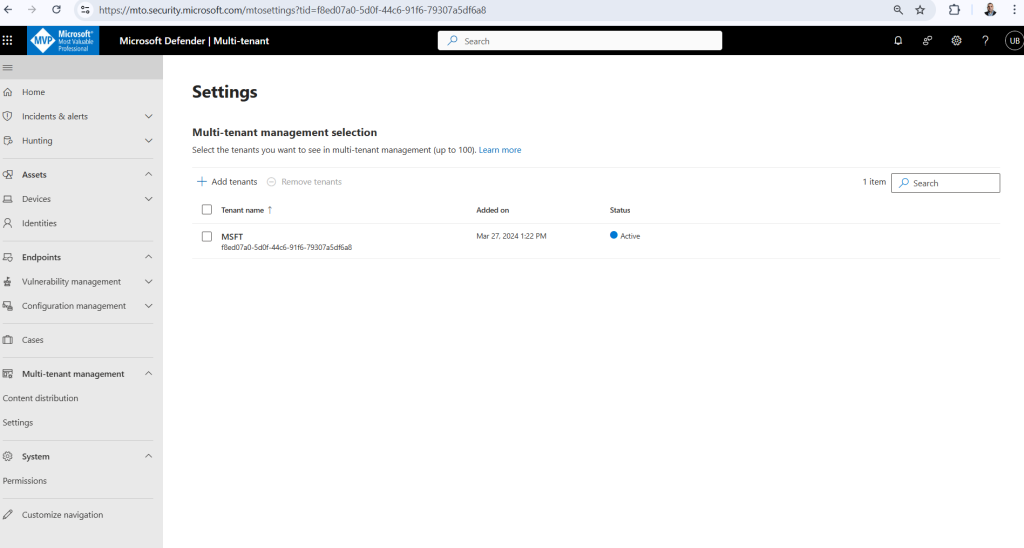
- Sign in to Microsoft Defender multitenant management https://mto.security.microsoft.com/
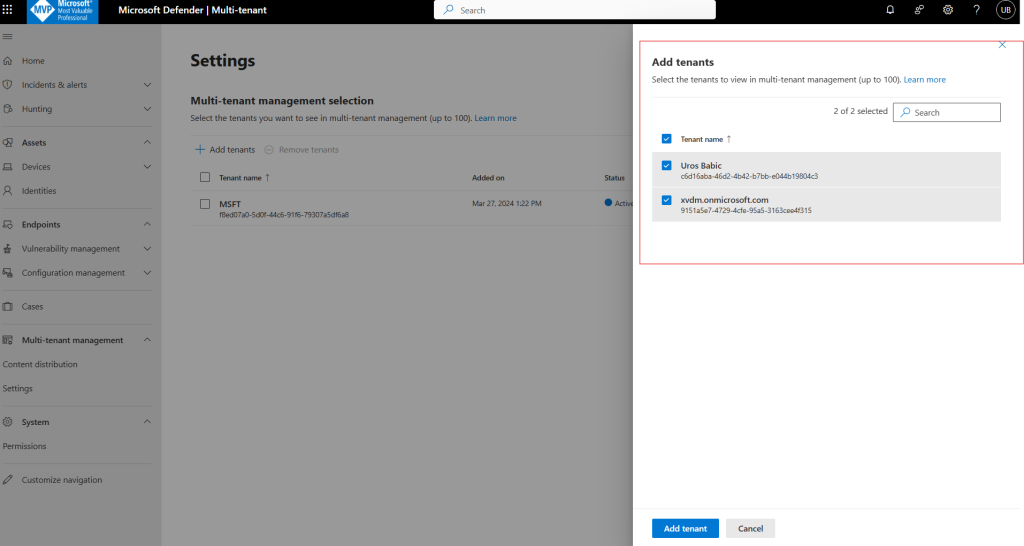
- In Multitenant Management Click Settings, Select the tenants you want to see in multi-tenant management (up to 100)
Choose the tenants you want to manage and select Add Tenant
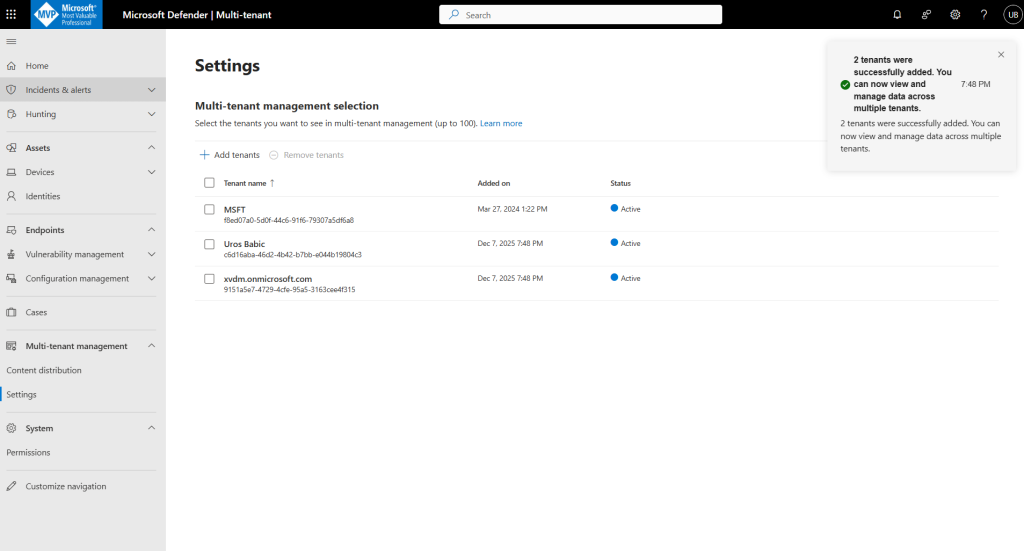
The Microsoft Defender multitenant view currently has a limit of 100 target tenants.
The features available in multitenant management now appear on the navigation bar and you’re ready to view and manage security data across all your tenants.
Unified RBAC permission and roles in Multitenant management
Unified RBAC (URBAC) is the permissions model inside the Microsoft Defender (XDR) portal. It gives you one central place to author roles and assignments for SecOps across Endpoint, Identity, Email, Apps, Cloud posture, and (now) Sentinel data—separate from Entra ID and Azure RBAC.
Starting Feb 16, 2025 (Defender for Endpoint) and Mar 2, 2025 (Defender for Identity), URBAC is the default for new tenants; existing tenants can activate it workload‑by‑workload.
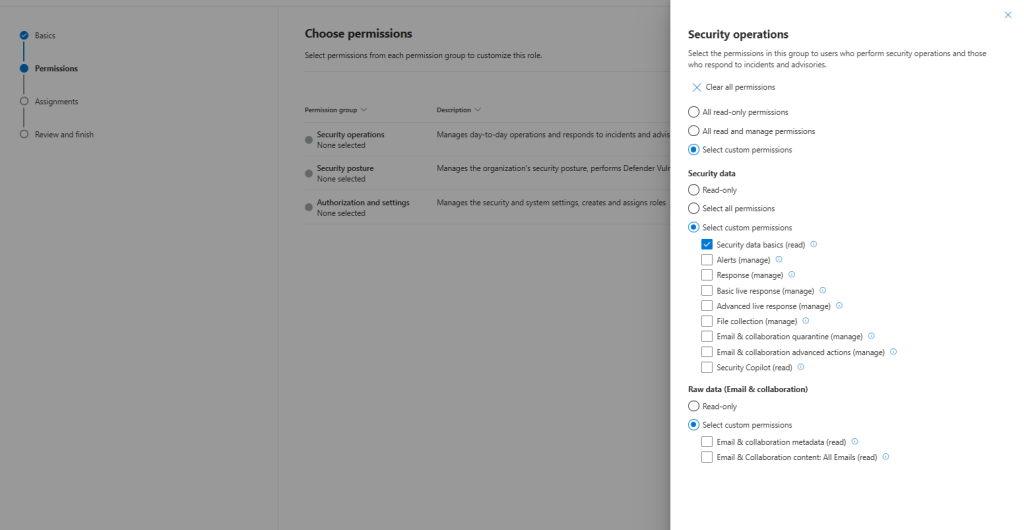
URBAC exposes permission groups (Security Operations, Posture, Authorization/Settings, etc.), with granular actions like alerts, response, basic/advanced live response, file collection, and email quarantine. You compose custom roles from these permissions and scope them to data sources (device groups, cloud scopes, identity scopes).
Multi‑tenant security operations in Microsoft land typically involve three control planes:
- Microsoft Defender multimanagement (MTO) portal
Centralizes URBAC management across multiple tenants: view, create, edit, delete, and import roles per tenant, assign users and scopes—all from one place. - Azure Lighthouse (for Azure resources)
Cross‑tenant delegated resource management using Azure RBAC at subscription/resource‑group scopes; ideal for platform/infra teams or MSSPs. It projects customer resources into your managing tenant without moving data, with audit in both tenants and optional PIM/JIT. - Microsoft 365 Lighthouse (for Microsoft 365 customer tenants)
Partner‑side multi‑tenant admin with Lighthouse RBAC (in the partner tenant) + GDAP (granular delegated admin privileges in customer tenants). RBAC in Lighthouse controls the tooling UI in your partner tenant; GDAP grants the actual permissions in each customer tenant.
Go to Settings—Permission and roles
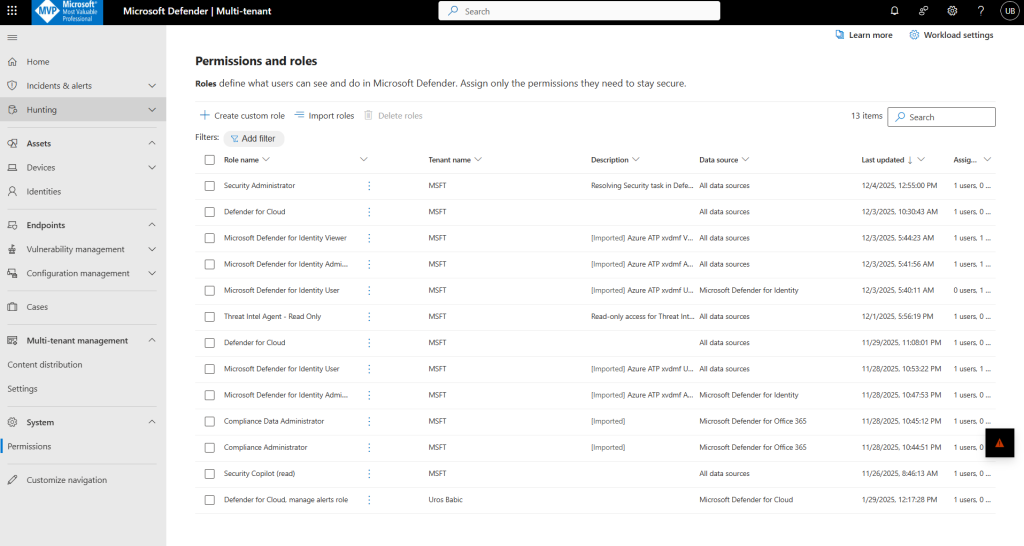
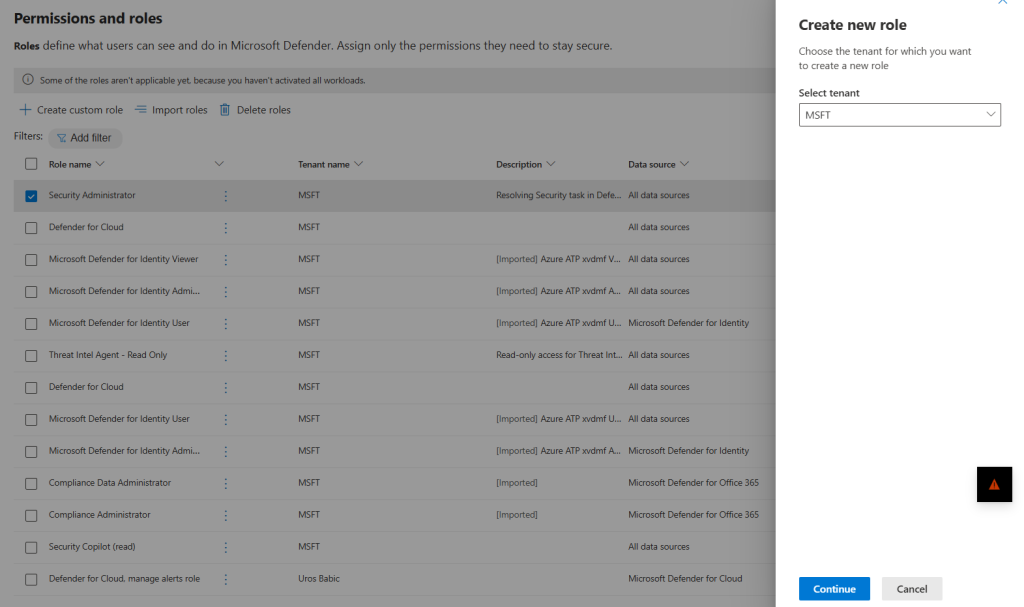
Create custom role, Create new role
Choose the tenant for which you want to create a new role
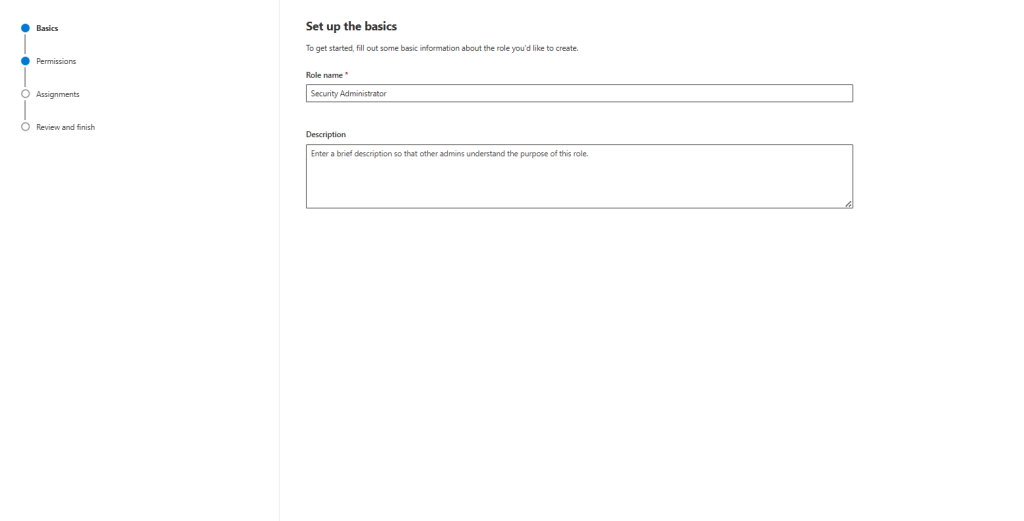
Choose Security Administrator role:
Select the permissions in this group security operations to users who perform security operations and those who respond to incidents and advisories and apply
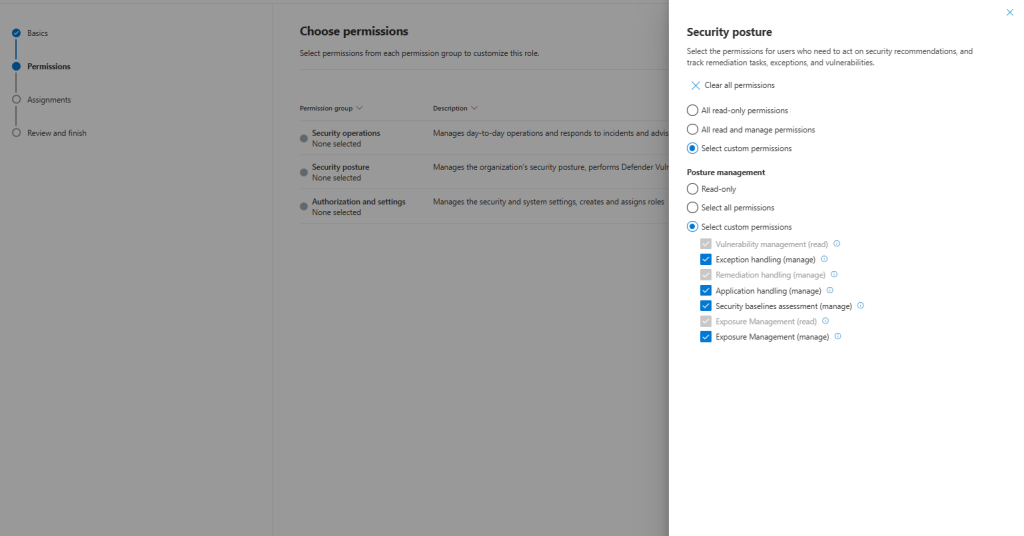
Select the permissions Security posture for users who need to act on security recommendations, and track remediation tasks, exceptions, and vulnerabilities.
Authorization and settings
Select the permissions for users who need to configure your security and system settings, and create and assign roles.
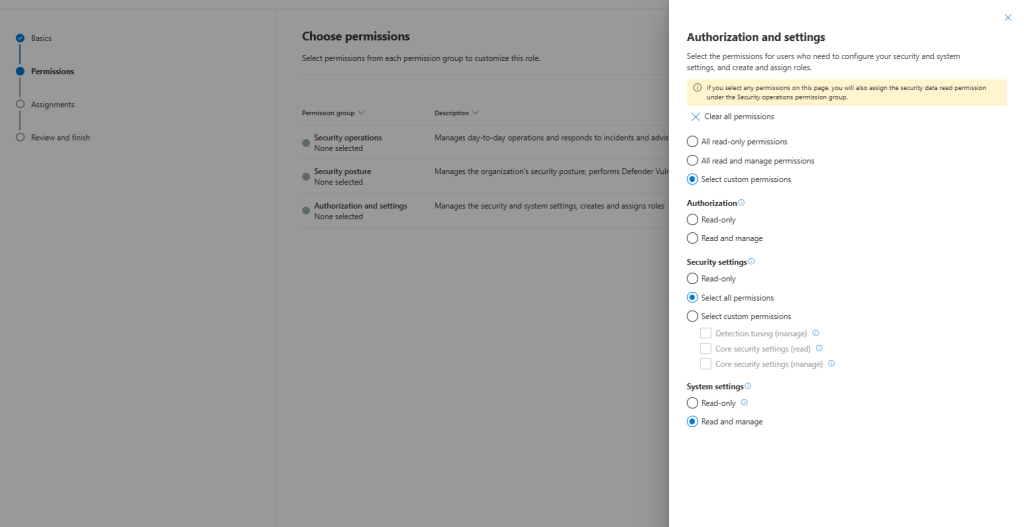
In a multitenant setup using Microsoft Defender’s Unified RBAC, roles are defined centrally and can be applied across all managed tenants through the Multitenant Organization (MTO) portal. This means you create a role once—combining the necessary permissions for tasks like alert investigation, response actions, or posture management—and then assign it to users or groups in multiple tenants. Each assignment can still be scoped to specific resources, such as device groups or cloud scopes, ensuring least privilege. This approach eliminates the need to duplicate role configurations per tenant, simplifies governance, and enforces consistent security operations across your entire environment.
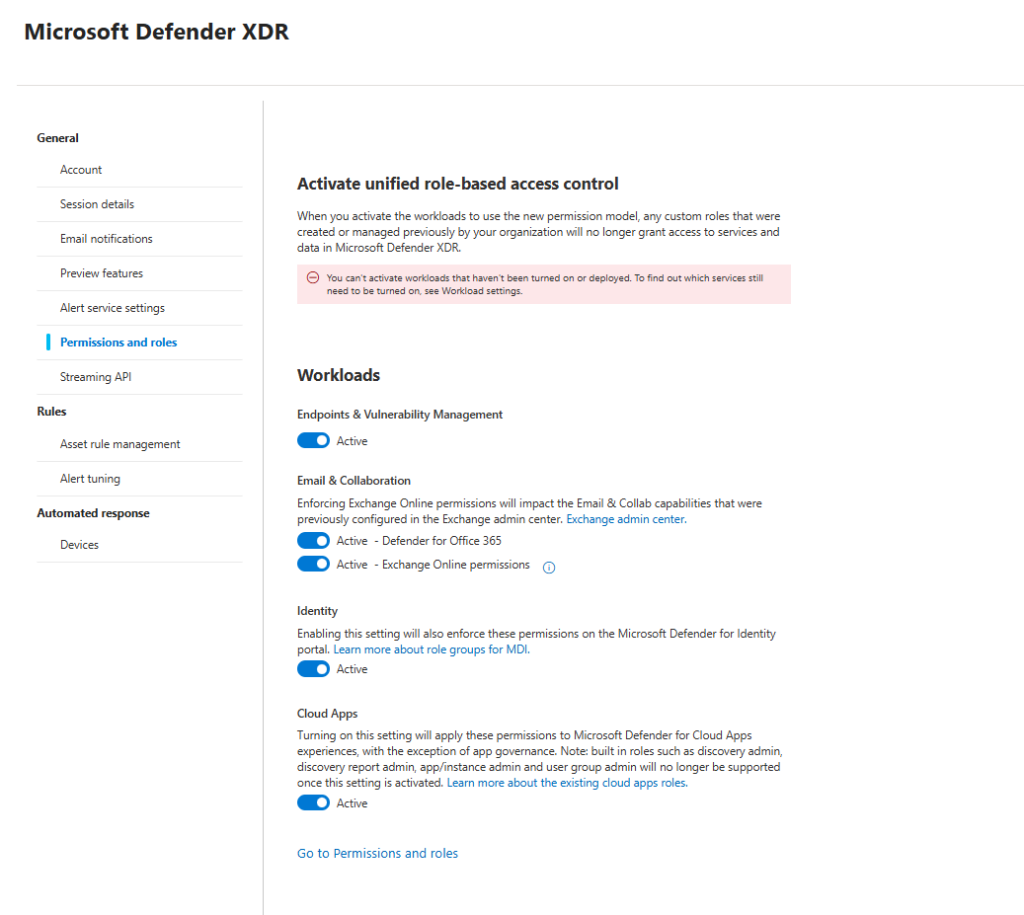
When you activate the workloads to use the new permission model, any custom roles that were created or managed previously by your organization will no longer grant access to services and data in Microsoft Defender XDR.
View and manage incidents and alerts in Microsoft Defender multitenant management
Multi-tenant management in Microsoft Defender XDR and Microsoft Sentinel provides SOC analysts with a unified experience to access and analyze data from multiple tenants and workspaces in one centralized portal.
This capability enables faster threat detection and response by allowing teams to triage incidents and alerts across both SIEM and XDR data sources. For tenants that have onboarded Microsoft Sentinel, analysts can seamlessly investigate and correlate incidents using connected workspaces—where each workspace represents a Log Analytics workspace with Sentinel enabled—ensuring comprehensive visibility and streamlined security operations across distributed environments.
Manage incidents & alerts originating from multiple tenants and workspaces under Incidents & alerts.
View and investigate incidents
To view or investigate an incident:
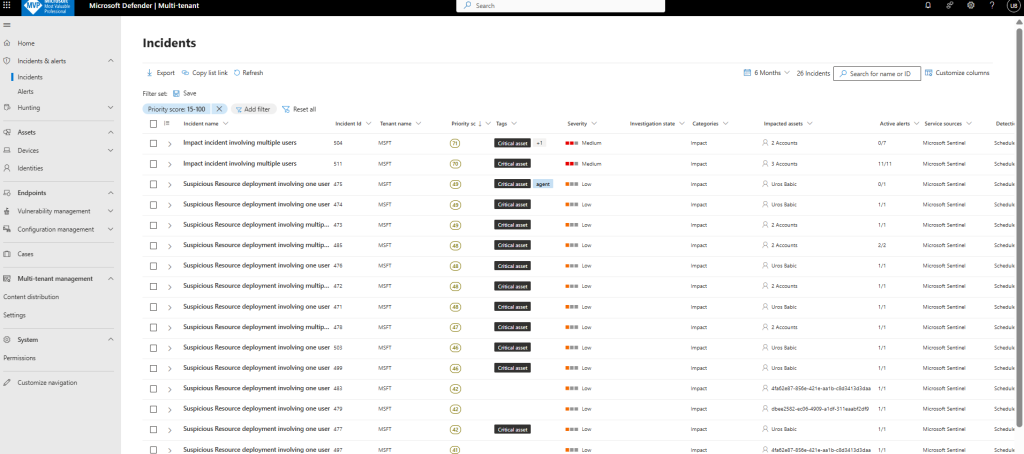
Go to the Incidents page in Microsoft Defender multitenant management. The Tenant name and Workspaces columns show which tenant the incident originates from:
Manage multiple incidents
To manage incidents across multiple tenants and workspaces:
- Go to the Incidents page in Microsoft Defender multitenant management.
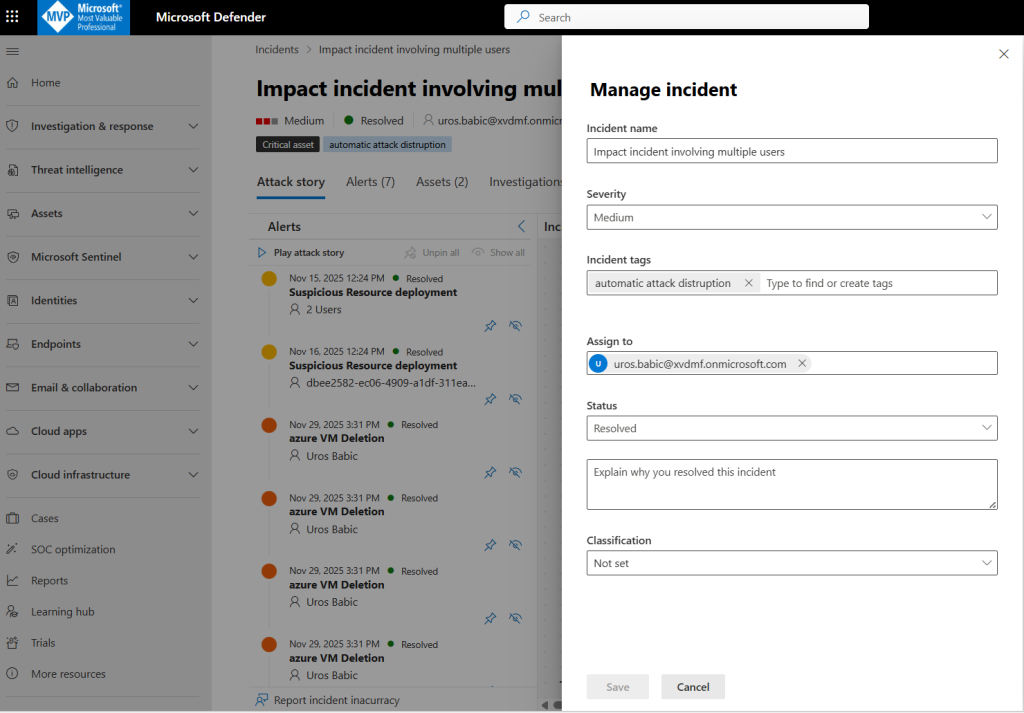
- Choose the incidents you want to manage from the incidents list and select Manage incidents.

You can assign incidents, assign incidents tags, set the incident status, and classify multiple incidents for multiple tenants simultaneously.
View and investigate alerts
To view or investigate an alert:
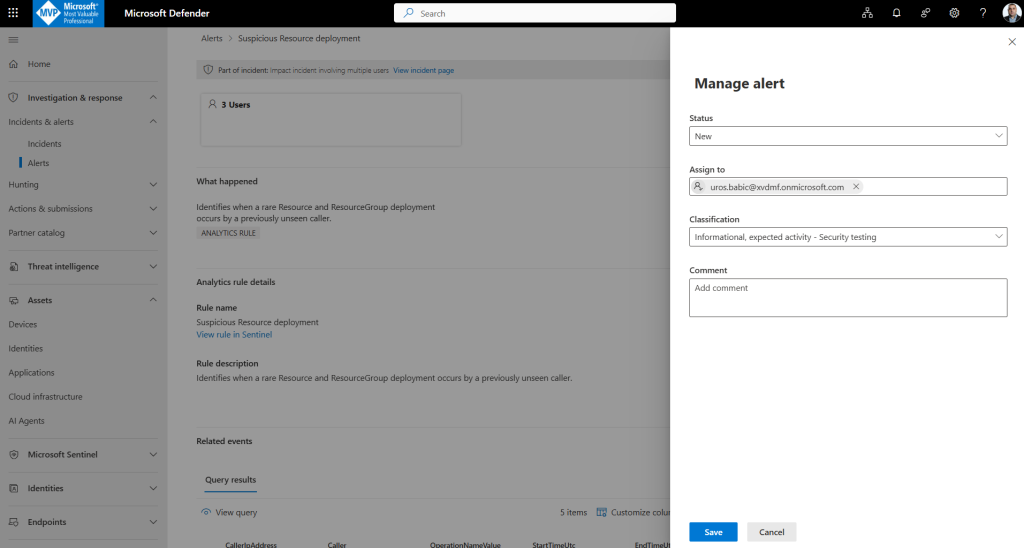
Go to the Alerts page in multitenant management and select the alert you want to view. A flyout panel opens with the alert details page:
Move alerts
Move an alert to a different incident to help you better organize and correlate related security events. For example, you might find that multiple alerts are part of the same security breach, and want to include them all in the same incident. This ensures that all relevant information is grouped together, enabling more efficient investigation and response.
To move one or more alerts:
- On the Alerts page, select one or more alerts and then select Move alerts
- On an alert details pane or alert details page, select Move alert to another incident
In the Move alert to another incident pane, define whether you want to create a new incident, or use an existing incident. If you choose to use an existing incident, search for the incident by name or ID and add a reason for the change. In all cases, add a comment describing your change before you select Save.
he Devices page in multitenant management enables you to quickly manage tenants and devices.
Advanced hunting in Microsoft Defender multitenant management
Advanced hunting in Microsoft Defender multitenant management allows you to proactively hunt for intrusion attempts and breach activity in email, data, devices, and accounts across multiple tenants and workspaces at the same time. If you have multiple tenants with Microsoft Sentinel workspaces onboarded to the Microsoft Defender portal, search for security information and event management (SIEM) data together with extended detection and response (XDR) data across multiple tenants and workspaces
Advanced Hunting is a query-based threat hunting feature in Microsoft Defender XDR that uses Kusto Query Language (KQL) to search across raw telemetry and security data. It’s designed for proactive threat detection, investigation, and correlation beyond standard alerts.
When multitenant management is enabled:
Unified Hunting Experience
Analysts can run one query across multiple tenants from the Defender portal, instead of executing separate queries per tenant.
Cross-Tenant Data Correlation
Detect attack patterns that span multiple environments (e.g., same malicious IP hitting different subsidiaries).
Tenant Filtering
Results can be filtered by tenant, device group, or cloud scope for focused analysis.
Supported Tables
Includes data from Defender for Endpoint, Identity, Office, and Defender for Cloud—plus Sentinel if connected.
You can run any query that you already have access to in the multitenant management Advanced hunting page.
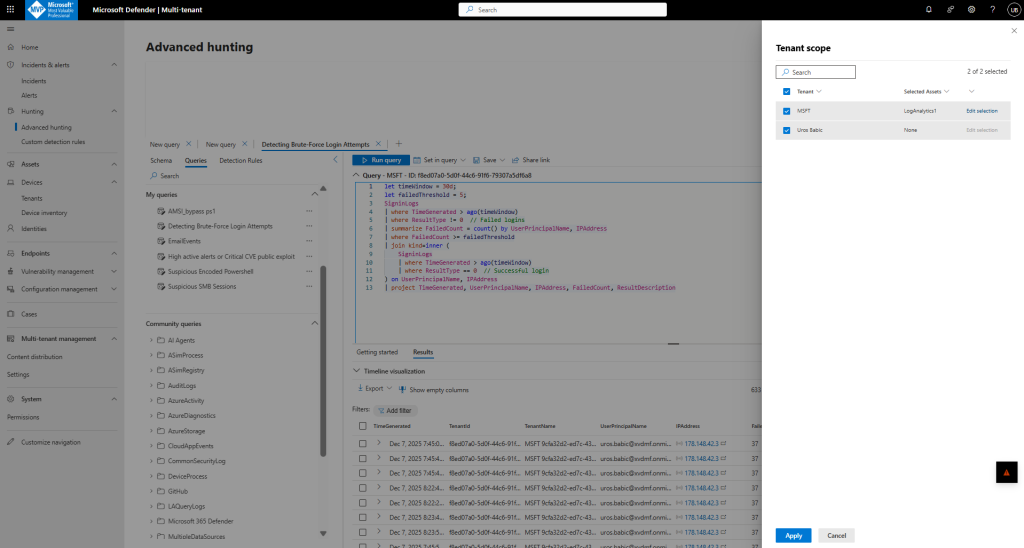
Load a query in the query editor and select the tenant selector to specify the tenants and workspaces you want to run the query against.
Queries listed on the Queries tab are filtered by tenant. Select a tenant to view the queries available for each one.
In the side pane that opens, select the tenants you want to include in the query. Each tenant supports a single workspace. If you have multiple workspaces onboarded to the Defender portal in your tenant, select Edit selection to select the workspace you want to use.
View custom detection rules by tenant
Custom detection rules let you run scheduled KQL queries against Defender/XDR hunting tables and automatically create alerts/incidents when a match is found. In the Unified RBAC model, you can view and manage these rules in the Defender portal—and, with multitenant management (MTO), you can administer them across multiple tenants from one place.
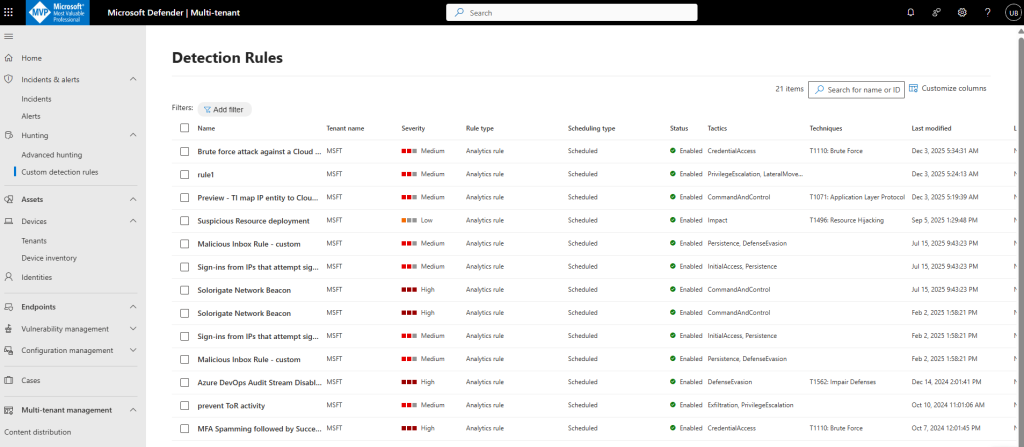
- To view custom detection rules, go to Custom detection rules tab in Microsoft Defender multitenant management.
- View the Tenant name column to see which tenant the detection rule comes from:
Tenant device list
The Tenants page in multitenant management lists each tenant you have access to. Each tenant page includes details such as the number of devices and device types, the number of high value and high exposure devices, and the number of devices available to onboard:
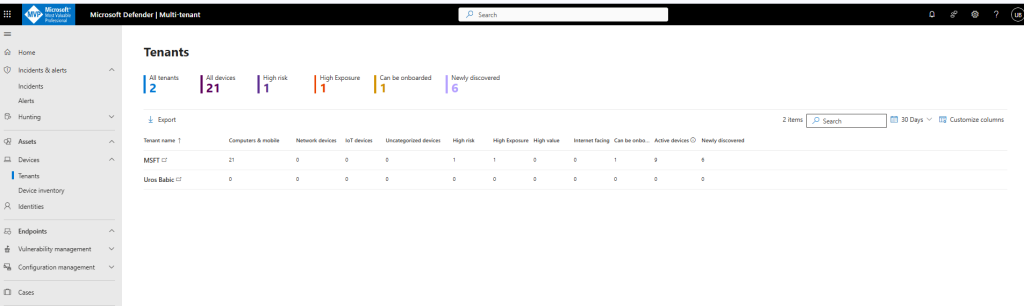
At the top of the page, you can view the number of tenants and the number of devices onboarded or discovered, across all tenants. You can also see the aggregate number of devices identified as:
- High risk
- High exposure
- Internet facing
- Can be onboarded
- Newly discovered
- High value
Device inventory
The Device inventory page lists all the devices in each tenant that you have access to.
You can navigate to the device inventory page by selecting Assets > Devices in Microsoft Defender XDR’s navigation menu.
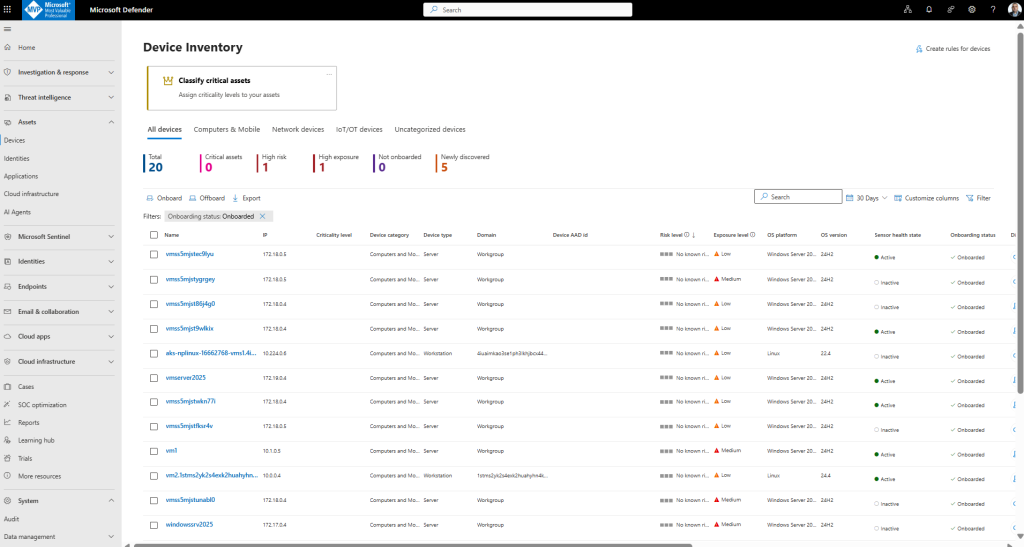
he total number of devices, critical assets, high risk devices, and internet-facing devices for all tenants are shown at the top of the page.
You can sort and filter the device list according to the following fields to customize your view:
- Tenant name
- Risk level
- Criticality level
- Mitigation status
- Cloud platforms
- Operating system (OS) platforms
- Windows OS version
- Sensor health state
- Antivirus status
- Tags
- First seen
- Internet facing
- Group
- Exclusion state
- Managed by
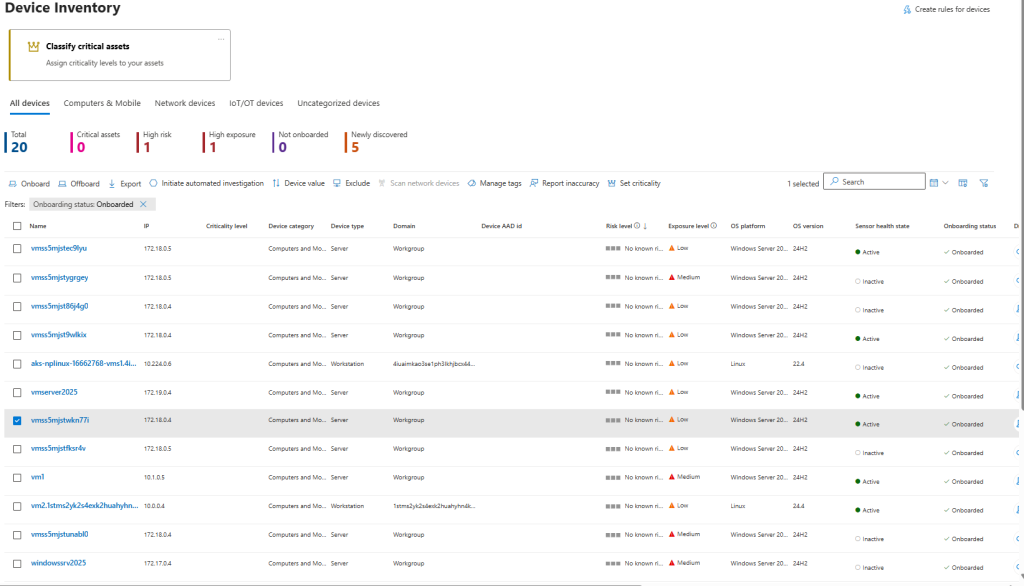
To manage a device, select a specific device from the list. Device management tasks like managing tags, device exclusion, and reporting inaccuracy becomes available at the top of the device list.
Identities
The Identities page in multitenant management enables you to quickly manage tenants and identities.
Identity inventory
The Identity inventory page lists all the identities in each tenant that you have access to. The page is like the Defender for Identity inventory with the addition of the Tenant name column and filter.
You can navigate to the identity inventory page by selecting Assets > Identities in Microsoft Defender XDR’s navigation menu.
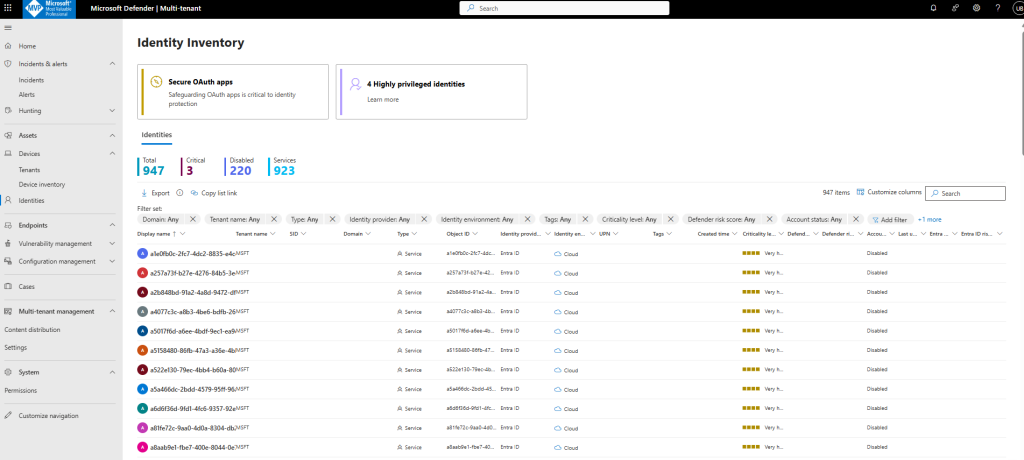
At the top of the page, the following identities counts are available for all tenants:
Total: The total number of identities.
Critical: The number of your critical assets.
Disabled: The number of all disabled identities in your organization.
Services: The number of all service accounts both on-premises and cloud.
You can use this information to help you prioritize identities for security posture improvements.
Case management in multitenant operations
Case management in a multitenant environment ensures that security teams can track, investigate, and resolve incidents across multiple tenants in a structured and consistent way. Within the Microsoft Defender XDR and Sentinel unified portal, cases (or incidents) are aggregated from all connected tenants into a single view, allowing analysts to:
- Centralize investigations: Analysts can open, assign, and update cases without switching between tenant portals.
- Maintain context: Each case retains tenant-specific details, including alerts, evidence, and related entities, while still being accessible from the unified dashboard.
- Enable collaboration: SOC teams can assign cases to specific analysts or groups across tenants, ensuring accountability and streamlined workflows.
- Track lifecycle: Cases include status updates (Active, In Progress, Resolved), severity, and SLA tracking for compliance and operational efficiency.
- Cross-tenant correlation: Advanced hunting and incident correlation help identify patterns that span multiple tenants, reducing blind spots in distributed environments.
This approach improves operational efficiency, enforces consistent processes, and strengthens security posture by enabling SOC teams to manage incidents holistically across all managed tenants.
In Defender XDR, a case is essentially an incident container that groups related alerts, evidence, and entities into a single investigation unit. This helps SOC teams manage complex attacks more efficiently by providing context and reducing alert fatigue.
How It Works in Multitenant Mode
When multitenant management is enabled in the Defender portal:
- Unified Incident Queue
All incidents from connected tenants appear in a single view, allowing analysts to prioritize and triage without switching portals. - Tenant Context Preservation
Each case retains its original tenant context (alerts, affected assets, user accounts), so analysts know exactly where the threat originated. - Cross-Tenant Correlation
Defender XDR can link related alerts across tenants into one case if they share indicators (e.g., same malicious IP or file hash), helping detect lateral movement between environments. - Role-Based Access Control (RBAC)
Unified RBAC ensures analysts only see cases for tenants they are authorized to manage, maintaining least privilege even in a shared view.
Key Features for Case Management
- Case Lifecycle: Status tracking (Active, In Progress, Resolved) with timestamps and SLA compliance.
- Assignments: Cases can be assigned to specific analysts or teams across tenants.
- Evidence & Entities: Consolidated view of impacted devices, identities, and cloud resources.
- Automation: Playbooks can run across tenants for standardized response actions
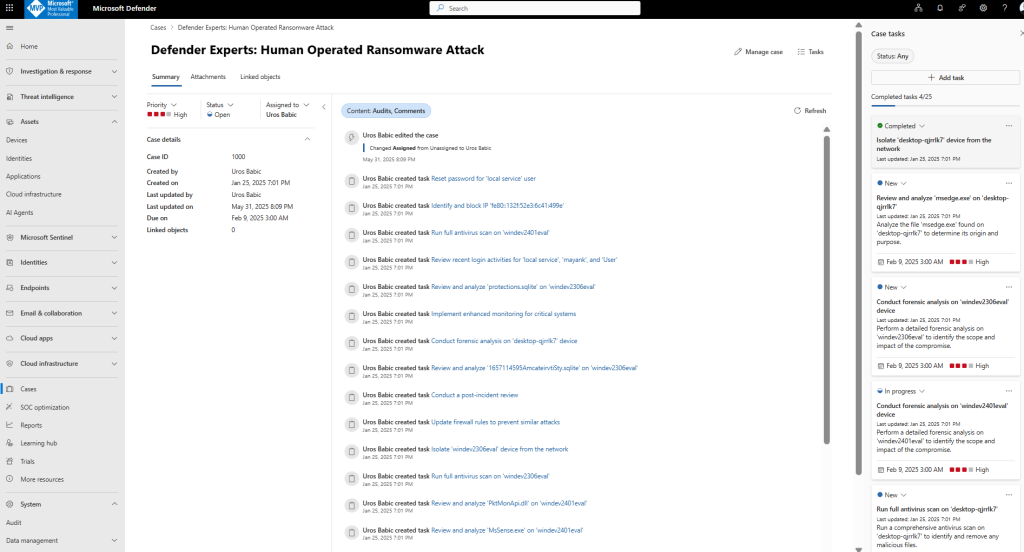
The cases experience in the multitenant portal is just like that in the regular, single-tenant portal, but with a few extra features:
- The Cases queue contains columns for Tenant and Tenant ID, so you can see which tenant each case belongs to.
- If you are managing many tenants, you can search, sort, or filter the case queue by tenant. The existing sort, filter, and search capabilities also work across multiple tenants in one combined view.
- Role-based access control (RBAC) settings are applied at the tenant level, so you only see cases from the tenants you have access to.
To start using case management, select Cases in the Defender portal to access the case queue. Filter, sort, or search your cases to find what you need to focus on.
Conclusion
Multitenant management in Microsoft Defender XDR and Microsoft Sentinel transforms how security operations teams work by providing a unified, centralized view across all managed tenants. This approach eliminates the complexity of siloed environments, enabling faster incident response, advanced hunting, and consistent role-based access control. By integrating Sentinel workspaces and leveraging Unified RBAC, organizations can enforce least privilege, streamline governance, and improve operational efficiency. Ultimately, multitenant management delivers the scalability and visibility needed to protect modern, distributed environments with confidence.